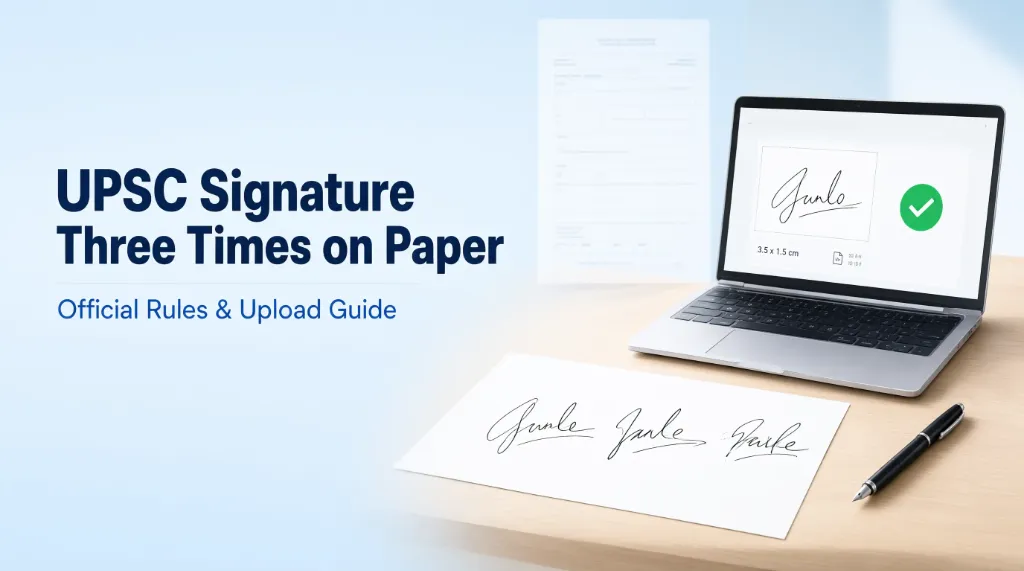
If you are preparing your signature for a UPSC application, you may have come across the instruction UPSC signature three times on paper. This can be confusing, especially if you are filling out the application form for the first time.
Should you write your signature three times on one sheet? Should you scan all three signatures together? Or is one signature enough?
The correct answer depends on the instructions provided for your particular examination. You should not assume that writing your signature three times is a universal requirement for every UPSC application. While specific exams like the Civil Services Examination require candidates to sign three times vertically (as detailed in our UPSC CSE Signature Size 2026 Guide), other recruitment drives under the Union Public Service Commission may only ask for a single specimen.
The official UPSC online application FAQ provides general instructions about preparing and uploading signature images. It advises candidates to sign on white paper, preferably using a black ink pen for better visibility. It also specifies image size, dimensions, and format requirements.
In this guide, you will learn what the instruction means, how to prepare your signature correctly, and what to check before uploading it.
Does UPSC Require You to Sign Three Times on Paper?
Not as a universal rule based on the general UPSC online application FAQ.
The phrase UPSC signature three times on paper appears in particular examination guidelines—most notably for the Civil Services Examination (CSE) and certain One Time Registration (OTR) updates. However, you should verify the original notification before following it.
The official UPSC application portal directs candidates to the detailed instructions for the particular examination. Those instructions take priority over general advice found on blogs, videos, or social media.
You should distinguish between these two situations:
- Your examination instructions explicitly say to sign three times: Follow that instruction and prepare the image as directed (usually three signatures placed one below the other on plain white paper).
- Your examination instructions do not mention three signatures: Do not assume that three signatures are compulsory simply because another website recommends them.
This distinction matters because UPSC conducts different examinations and recruitment processes (CSE, NDA, CDS, CMS, Engineering Services), and their application requirements may not always be identical.
For the most reliable technical guidance, visit the official UPSC online application FAQ.
What Does UPSC Mean by Writing a Signature on Paper?
In general, preparing a signature for an online application means writing your genuine signature on paper and creating a digital image of it.
The image is then uploaded to the application portal according to the specified technical requirements.
The general signature preparation process involves:
- Taking a clean sheet of white paper.
- Writing your genuine signature clearly.
- Scanning the signature or taking a clear image according to the official instructions.
- Cropping unnecessary blank space around it.
- Adjusting the image dimensions and file size if required.
- Uploading the final image and checking the preview.
If a specific notification asks you to write the signature three times, follow the stated arrangement and scanning instructions. For example, if it requires three signatures on one sheet, keep them separate, vertically aligned, and legible so that the required specimen can be identified clearly.
Do not assume that all three signatures must appear in the final uploaded image unless the instructions say so.
How to Prepare Your UPSC Signature Correctly
Even if your examination does not require three signatures, preparing a clear image is important:
Step 1: Read the Official Examination Instructions
Before writing your signature, open the notification or online application instructions for your examination.
Look for the section covering photograph and signature uploads. Check whether it specifies:
- The number of signatures required on paper (single vs triple signature).
- The type and colour of ink.
- The paper or background requirements.
- The permitted image dimensions in pixels.
- The minimum and maximum file size in KB.
- The accepted image format.
Step 2: Use White Paper and Suitable Ink
The general UPSC online application FAQ recommends signing on plain white paper, preferably with a black ink pen for better contrast and visibility.
Choose a pen that produces a clear, consistent line. Avoid ink that smudges easily or appears too faint when scanned. Before scanning, allow the ink to dry completely.
A clean background helps the signature remain distinguishable from the paper.
Step 3: Write Your Genuine Signature
Write the signature you normally use and ensure it is clearly visible.
Avoid experimenting with a new signature style just before submitting your application. Do not copy another person’s signature or alter the handwriting to imitate someone else.
If three signatures are specifically required (e.g. for CSE), write each one carefully and consistently, one below the other. Leave enough space between them. If only one signature is requested, prepare one clear signature rather than adding extra specimens unnecessarily.
Step 4: Scan or Photograph the Signature
Use a scanner or a phone camera to create a digital copy, depending on what the application instructions permit:
- Keep the paper flat on a clean surface.
- Use sufficient lighting without glare.
- Avoid shadows and reflections.
- Keep the camera directly above the paper.
- Make sure the handwriting is in sharp focus.
- Check that no part of the signature is cut off.
If your original image comes out faint or pixelated, refer to our troubleshooting tips on how to fix signature image not clear in application form.
Step 5: Crop the Image Carefully
After scanning, inspect the image for unnecessary blank space.
Crop the image around the required signature while preserving all of the handwriting. Do not cut off any strokes or remove part of the signature to make it fit a particular shape.
If three signatures are required in one image, crop around the complete block of three signatures while maintaining equal margins.
Step 6: Resize the Image According to the Portal
Check the required dimensions and file size before using a signature resizer.
The official UPSC online application FAQ gives the following general specifications:
| Requirement | General FAQ guidance |
|---|---|
| Paper | White paper |
| Ink | Preferably black ink for visibility |
| File format | JPG or JPEG |
| File size | Minimum 20 KB and maximum 300 KB |
| Image dimensions | Minimum 350 × 350 pixels and maximum 1000 × 1000 pixels |
You can use our free Signature Resizer Online Tool to resize pixel dimensions and adjust file size instantly. For a complete walkthrough of tool features, explore our Signature Resizer Online Free Guide and Signature Resizer for Government Job Form.
Step 7: Preview the Uploaded Signature
After uploading your image, inspect the preview carefully on the portal:
- Is the signature clearly visible?
- Does the image contain the required signature or triple signatures?
- Is the handwriting complete and not cropped?
- Is the image free from excessive pixelation?
- Does the file meet all specified properties?
The UPSC FAQ advises candidates to review the uploaded photograph and signature before confirming the upload. It also warns that poor-quality images may put an application at risk of rejection. If your upload fails, consult our troubleshooting guide on Signature Upload Failed in Online Application Form: Causes and Solutions.
One Signature or Three Signatures: Which Should You Upload?
| Situation | What you should do |
|---|---|
| The instructions request one signature | Prepare and upload one clear signature image |
| The instructions explicitly request three signatures (e.g. UPSC CSE) | Sign 3 times vertically, scan all three, and upload together |
| A blog says 3 signatures are compulsory, but the official notice is silent | Verify the claim from the official notification before following it |
| The portal provides a sample signature | Compare your image layout with the official sample |
| Instructions for your exam differ from general FAQ guidance | Always follow the specific examination notice |
The important point is that writing three signatures on paper and uploading an image containing three signatures are not necessarily the same requirement. Always read the complete instruction.
Common Mistakes to Avoid
Candidates often make avoidable mistakes while preparing their UPSC signature files:
- Following unverified advice: A video tutorial may recommend writing your signature three times because that instruction appeared in another exam. Check the current notification first.
- Uploading an image with too much blank space: Excessive blank space makes the handwriting appear tiny in the admit card or application preview.
- Over-compressing the image: Reducing the file size excessively can make fine strokes disappear.
- Uploading the wrong format: Renaming a
.pngfile to.jpgdoes not make it a genuine JPEG. Always use proper image export options. - Ignoring the final preview: A signature can look clear on your device but display distorted after upload. Always inspect the preview.
To ensure your application is not turned down, review our guide on Government Exam Form Rejected Due to Signature: Reasons and Solutions. Also, keep all other documents ready using our Documents Required for Government Job Online Application Checklist.
Where Can You Verify the Official UPSC Signature Rules?
The best source is the official application portal and the notification for the examination you are applying for.
Start with these resources:
- UPSC Online Application FAQ — general technical guidance about signature preparation, image specifications, and upload problems.
- Official UPSC website — examination notifications, rules, and other official announcements.
- UPSC Apply Online page — access to the application portal and online recruitment application resources.
If you are filling forms for other exams as well, compare requirements with our SSC CGL Signature Guide, SSC CHSL Upload Guide, and IBPS PO Signature Guide. If you run a cyber café or CSC, consult our Signature Resize for CSC VLE Guide.
For a complete walkthrough of completing digital forms smoothly, read our Online Govt Exam Form Guide.