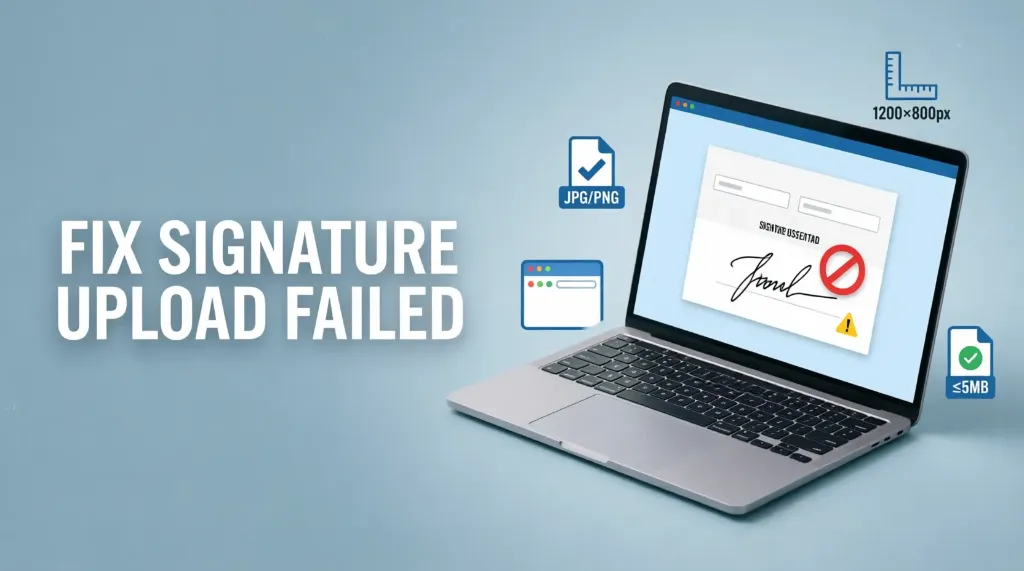
Are you getting a signature upload error while filling out a government exam form, job application or online registration form? You may see messages such as file upload failed, invalid signature format, file size exceeds the limit or unable to upload image.
These errors can be frustrating, especially when the application deadline is approaching. However, many signature upload problems can be resolved by checking the image specifications, preparing the file correctly and troubleshooting your browser or internet connection.
The important thing to remember is that signature upload failed in an online application form does not always mean your signature is incorrect. Sometimes the problem is related to the file format, image dimensions, file size or a temporary technical issue with the website.
In this guide, you will learn the common reasons for signature upload failure and the practical steps you can follow to fix the problem.
Why Does Signature Upload Fail in an Online Application Form?
An online application portal usually checks whether your uploaded image meets its technical requirements. If the file does not meet those requirements, the website may reject it or display an error.
Here are the most common reasons:
| Problem | Possible reason | What you can do |
|---|---|---|
| Invalid file format | The portal does not accept your image type | Save the image in an accepted format (JPG/JPEG) |
| File size too large | The image exceeds the maximum limit | Compress the image carefully |
| File size too small | The image is below the minimum limit | Export the image at a suitable quality |
| Incorrect dimensions | Width or height does not match instructions | Resize the image to the required pixels |
| Blurry signature | The writing is difficult to read | Scan the signature again |
| Upload button not responding | Browser issue or website problem | Refresh the page and try another browser |
| Upload gets stuck | Slow or unstable internet connection | Switch to a more stable connection |
| File not recognised | The extension or file encoding may be incorrect | Export a fresh image in the accepted format |
The best way to identify the problem is to read the complete error message instead of repeatedly uploading the same file.
1. Check the Signature Image Format
One common reason for upload failure is using an unsupported image format.
Some application portals accept only JPG or JPEG images. Others may accept PNG or provide a specific format for scanned documents.
For example, a portal that requires JPG may reject a PNG image even when the image looks visually correct.
How to Fix the Format Error
Follow these steps:
- Locate your signature image on your computer or phone.
- Open it using an image editor or our free Signature Resizer Online Tool.
- Select the Save As or Export option.
- Choose the format specified in the application instructions (usually JPG/JPEG).
- Save the new file and try uploading it again.
Remember that JPG and JPEG refer to the same commonly used image format.
Important: Do not simply rename
signature.pngtosignature.jpg. Changing the filename extension does not convert the actual image format. If the portal specifies JPG, export the image as a genuine JPG file.
2. Reduce or Adjust the Signature File Size
Another common reason is that the image does not meet the permitted file-size range.
Some portals specify a maximum size (e.g., maximum 20 KB or 50 KB), while others specify both minimum and maximum limits (e.g., 10 KB to 20 KB).
For example:
- In SSC CGL 2026, the requirement is strictly 10 KB to 20 KB.
- In IBPS PO 2026, the file size is strictly 10 KB to 20 KB.
- In UPSC CSE 2026, the allowed range is 20 KB to 100 KB.
If an application requires a signature image between 20 KB and 50 KB, a file of 80 KB will exceed the maximum. A file of 10 KB will also fail because it is below the minimum.
How to Fix the File-Size Error
- Check the minimum and maximum file size in the official instructions.
- Open the image in our Free Signature Resizer Tool.
- Reduce the file size if it exceeds the permitted limit using smooth compression.
- If the file is too small, export it again with a higher quality setting.
- Save the final image and check its size in File Properties before uploading.
Avoid excessive compression. A very small image may become blurry, making the signature difficult to identify. The goal is to meet the file-size requirement without damaging the clarity of the signature.
3. Check the Required Image Dimensions
An image can have the correct file size and still fail because its width or height is incorrect.
Image dimensions are measured in pixels (or centimetres). For example, an image measuring 300 × 100 pixels has a width of 300 pixels and a height of 100 pixels.
If the portal requires specific dimensions (such as 140 × 60 pixels for IBPS or 350 to 500 pixels for UPSC), an image with non-compliant dimensions will trigger an upload error.
How to Resize Your Signature Image
- Open the signature in our Signature Resizer Online Free Guide or tool.
- Find the Resize / Dimensions option.
- Enter the required width and height in pixels.
- Maintain the correct proportions where possible so the signature is not stretched.
- Save the image and verify its clarity and file size again.
Do not copy pixel dimensions from another examination or website without checking your own application instructions. Always follow the instructions for the specific portal you are using.
4. Make Sure Your Signature Is Clear and Properly Scanned
Sometimes the file uploads successfully, but the portal rejects it during image verification or displays a preview that is difficult to read.
This can happen when the signature is blurred, cropped, too faint or surrounded by excessive blank space. A poor-quality scan can also become less readable after compression.
Tips for Preparing a Clear Signature
- Sign on clean white paper if the instructions require it.
- Use the prescribed ink colour (e.g. black ink for UPSC and IBPS).
- Keep the signature completely visible.
- Avoid shadows and uneven lighting.
- Crop unnecessary blank areas without cutting off the writing.
- Scan the signature at a suitable quality (200–300 DPI).
- Preview the final image before uploading.
If the signature is unclear, prepare a fresh scan rather than repeatedly compressing the same poor-quality image. Also, follow any specific instructions about how many times to sign—for instance, UPSC requires a triple signature arranged vertically. If your form is rejected, consult our guide on Government Exam Form Rejected Due to Signature: Reasons and Solutions.
5. Check the File Name and File Location
Although file names are not always the cause of upload errors, some websites handle unusual filenames or unsupported special characters poorly.
A simple filename can make the upload process easier to manage:
- Good:
signature.jpg - Avoid:
my signature final (1) #@!.jpg
Avoid unnecessary symbols, spaces, emojis or very long filenames. If the application instructions specify a particular filename (such as UPSC requiring signature), follow those instructions exactly.
Also, check that you are selecting the correct file from your computer or phone. It is easy to upload an older version or another document by mistake. Before selecting the file, open it once to confirm that it is the final version.
6. Fix Browser-Related Upload Problems
If your signature meets every requirement but still does not upload, the problem may be related to your browser.
Temporary browser errors, outdated software, cached website data or conflicting extensions can sometimes interfere with online forms.
Browser Troubleshooting Steps
- Step 1: Refresh the page: Refresh the application page if you have not entered unsaved information.
- Step 2: Reopen the application portal: Sign out if necessary, close the tab and log in again through the official website.
- Step 3: Try an updated browser: Use an updated version of a browser supported by the portal (Google Chrome, Mozilla Firefox, or Microsoft Edge).
- Step 4: Try a private browsing window: An Incognito or InPrivate window helps determine whether stored cookies, cache, or extensions are causing the upload block.
- Step 5: Disable conflicting extensions: Ad blockers and script blockers can sometimes prevent the upload script from communicating with the server. Temporarily disable them and retry.
7. Check Your Internet Connection
An unstable connection can interrupt an upload before the image reaches the server. This may result in a spinning upload indicator, a timeout message or an upload that never completes.
Try these steps:
- Check whether other websites are loading normally.
- Move closer to your Wi-Fi router if the signal is weak.
- Switch to a stable mobile data or alternative connection.
- Pause large background downloads or video streaming.
- Wait for the upload process to finish before clicking again.
Avoid repeatedly clicking the upload or submit button while the website is processing your file. If the internet connection is stable but the upload continues to fail, the problem may be on the application server rather than your device.
8. What If the Government Website Is Not Working?
Sometimes the upload error has nothing to do with your signature image.
The website may be experiencing heavy traffic, temporary maintenance or a technical problem. This is particularly common when many candidates are applying in the final 48 hours before a deadline.
To check whether the problem is temporary:
- Open the official website again after a short wait (15–30 minutes).
- Look for a maintenance notice or official extension announcement.
- Check whether other application functions or pages are loading.
- If you need assistance at a service centre, consult our CSC VLE Online Form Filling Services Guide.
- Contact the official helpdesk if the problem persists.
Do not rely on rumours or unofficial social media posts regarding website extensions. If the deadline is approaching, contact the helpdesk as early as possible and keep a screenshot of the error message for your records.
Step-by-Step Checklist to Fix Signature Upload Failed
Use this checklist to troubleshoot the issue systematically:
- Read the complete error message displayed on screen.
- Check the official signature upload instructions for that specific exam.
- Confirm the accepted file format (JPG or JPEG).
- Check the minimum and maximum file size (KB limits).
- Verify the required width and height in pixels or centimetres.
- Make sure the signature is clear and fully visible.
- Confirm that you selected the correct file from your device.
- Try refreshing the page if your progress is saved.
- Use an updated, supported browser without aggressive ad blockers.
- Check your internet connection stability.
- Retry after a short wait if the server appears busy.
- Contact official support if the problem continues.
For a broader walkthrough of completing government job forms without errors, explore our Online Govt Exam Form Filling Guide.
Official Resources for Signature Upload Errors
Official instructions should always take priority over general online advice because file specifications vary between application portals:
- For UPSC applications, the UPSC Online Application FAQ explains how candidates should check photograph and signature properties, including the accepted format, file size and image dimensions.
- For driving licence-related applications, the Parivahan FAQ advises applicants experiencing photograph or signature upload errors to read the error message and check document name, file type and size.
These are examples of official guidance for particular services. Always use the notification and instructions for your specific application.