Last updated: October 21, 2026 — Verified against the latest official UPSC Online application instructions.
Preparing your signature image for the UPSC Civil Services Examination can seem like a small task, but following the correct upload instructions is important when completing an online application.
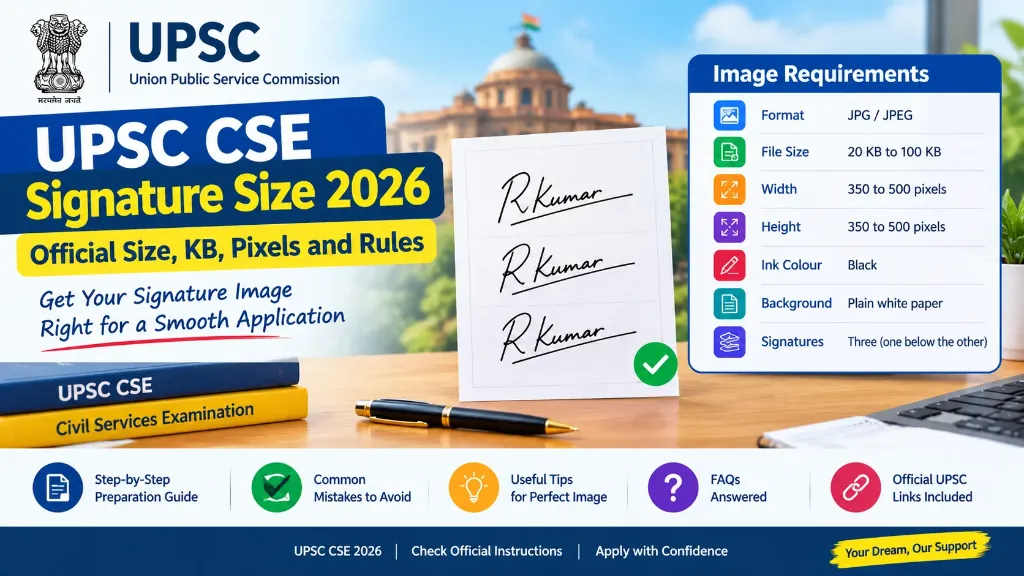
If you are searching for the UPSC CSE signature size 2026, you need to know more than just the image dimensions. The current instructions also specify the file format, file size, ink colour, paper background and how many times the signature must appear in the image.
One important detail for the 2026 application is that candidates must sign three times, one below the other, using black ink on plain white paper. Uploading only a single signature may not meet the prescribed instructions.
This guide explains the official signature image requirements, how to prepare the image correctly, common upload mistakes and what to do if your file does not meet the specifications.
UPSC CSE Signature Size 2026: Official Requirements
According to the document upload instructions available on the official UPSC application portal, candidates should follow these signature specifications:
| Requirement | UPSC CSE 2026 specification |
|---|---|
| Image format | JPG or JPEG |
| File size | 20 KB to 100 KB |
| Image width | 350 to 500 pixels |
| Image height | 350 to 500 pixels |
| Ink colour | Black ink |
| Paper background | Plain white paper |
| Number of signatures | Three (3) signatures |
| Signature arrangement | One below the other (vertical) |
| File name | signature.jpg |
| Image quality | Clear, readable and free from shadows |
Important: The specifications above refer strictly to the signature image, not the photograph.
You can verify these details in the official UPSC photo and signature upload instructions. You can also use our dedicated UPSC Signature Resizer Tool to format and crop your image to exact 350–500 px and 20–100 KB limits automatically.
Always check the instructions displayed on the application portal before uploading your file. Requirements can change between examination cycles.
How Many Times Should You Sign for UPSC CSE 2026?
One of the most important requirements is the triple signature format.
Candidates should write their signature three times on a clean white sheet, with each signature placed below the previous one. All three signatures should be included in a single scanned image.
Follow these steps:
- Take a clean sheet of plain white paper.
- Use a black ink pen to write your usual signature.
- Repeat the signature two more times below the first one.
- Keep all three signatures within the same area of the paper.
- Ensure the writing is clear and consistent.
- Scan the complete sheet and prepare the image according to the official specifications.
Do not create three separate image files unless the official instructions specifically ask for them. The required format is one single image containing all three signatures.
The purpose of following the prescribed format is to provide a clear signature image for the application and subsequent examination hall identification procedures.
UPSC Signature File Size in KB
The permitted file size for the signature image is 20 KB to 100 KB under the current upload instructions.
This means your file should not be smaller than 20 KB or larger than 100 KB:
| Signature file size | Does it meet the size requirement? |
|---|---|
| 15 KB | ❌ No, below the minimum (20 KB) |
| 20 KB | ✅ Yes, at the minimum |
| 45 KB | ✅ Yes, within the range |
| 80 KB | ✅ Yes, within the range |
| 100 KB | ✅ Yes, at the maximum |
| 125 KB | ❌ No, above the maximum (100 KB) |
These examples cover file size only. Your image must also meet the pixel, format, arrangement and clarity requirements.
How to Reduce the Signature Image Size
If your image exceeds 100 KB, you can use our free Signature Resizer Tool to adjust it instantly:
- Save the image as a JPG file.
- Remove unnecessary blank areas around the signatures.
- Adjust the image dimensions within the permitted range (350 to 500 pixels).
- Use moderate image compression.
- Check the final file size before uploading.
Avoid excessive compression because it can make the signature blurry. A smaller file is not useful if the writing becomes difficult to read.
If the image is below 20 KB, export it again using an appropriate quality setting. Do not add artificial details or distort the signature just to increase the file size.
UPSC CSE Signature Dimensions in Pixels
The current upload instructions specify a width and height between 350 and 500 pixels.
This means both dimensions need to be checked separately:
| Image dimensions | Meets the pixel requirement? |
|---|---|
| 300 × 300 pixels | ❌ No, below minimum (350 px) |
| 350 × 350 pixels | ✅ Yes, at minimum limit |
| 400 × 400 pixels | ✅ Yes, within range |
| 500 × 500 pixels | ✅ Yes, at maximum limit |
| 600 × 600 pixels | ❌ No, exceeds maximum (500 px) |
The examples above illustrate the dimensional limits. You must also make sure that all three signatures fit clearly within the image.
A square image is a practical option because it makes it easier to stay within the specified width and height ranges. However, the most important consideration is compliance with the portal’s actual instructions and maintaining clear, readable signatures.
Do not confuse the signature dimensions with the photograph dimensions. They are separate uploads and may have different specifications.
How to Prepare the UPSC Signature Image Step by Step
Follow this process to prepare your signature before uploading it to the application portal:
Step 1: Write Your Signature Correctly
Use a clean white sheet and a black ink pen.
Write your signature three times, one below the other. Leave enough space between the signatures so they do not overlap.
Use your normal signature rather than an unfamiliar design that you may not be able to reproduce consistently in the exam hall.
Step 2: Scan the Signature
Scan the complete area containing all three signatures.
Make sure the image is well lit, properly aligned and free from shadows. If you use a mobile phone to capture the image, keep the camera directly above the paper and avoid uneven lighting.
The background should appear white, and the writing should remain clearly visible.
Step 3: Crop the Image
Remove unnecessary blank space around the signatures.
Do not crop so tightly that any part of the first or third signature is cut off. All three signatures must remain completely visible.
Step 4: Adjust the Dimensions
Open the image in our UPSC Signature Resizer or an image editor.
Set the width and height within the prescribed 350 to 500 pixel range. After resizing, check that the writing remains sharp and readable.
If you use an online tool, avoid uploading sensitive identity documents or unrelated personal information.
Step 5: Save the Image in JPG Format
Save the final image in JPG or JPEG format, using the filename signature as specified by the upload instructions.
Changing the filename extension alone does not convert an image into a different file format. Use our Signature Resizer Online Free tool to export a clean, valid JPEG file.
Step 6: Check the File Size
Confirm that the final image is between 20 KB and 100 KB.
If necessary, adjust the compression settings without sacrificing clarity.
Step 7: Preview Before Uploading
Before uploading the image, verify the following:
- All three signatures are present.
- The signatures are arranged one below the other.
- The ink is black.
- The paper background is white.
- The image is in JPG format.
- The file size is within the permitted range (20 KB to 100 KB).
- Both pixel dimensions are within the prescribed limits (350 to 500 px).
- The writing is clear and not cropped.
A final preview can help you catch mistakes before submitting your application.
Common Mistakes to Avoid
Even when candidates prepare their signatures carefully, small errors can cause upload problems:
- Uploading Only One Signature: A single signature does not follow the triple signature requirement. Prepare all three signatures in one image as instructed.
- Using Blue Ink: The current instructions specify black ink. Use black ink from the beginning instead of trying to change the colour digitally afterwards.
- Uploading a Blurry Image: A signature image can become unclear because of poor lighting, camera movement or excessive compression. Scan the image again if the writing is not clearly visible.
- Using the Wrong Dimensions: An image may look correct on your screen but still fall outside the prescribed pixel range. Check both width and height in the image properties.
- Ignoring the File Size Limit: An image can meet the pixel requirements but still be too large or too small in KB. Always check both specifications.
- Uploading an Incorrect File Format: If the portal asks for JPG, do not upload a PNG or PDF signature image. Export the file in the accepted format.
- Cropping Part of the Signature: Make sure the complete writing remains visible. Leave sufficient space around the signatures while avoiding excessive blank areas.
If you are also applying for other exams or want to see how SSC differs from UPSC, check our SSC CGL Signature Size 2026 Guide and our comprehensive guide on Government Exam Form Rejected Due to Signature: Reasons and Solutions.
What Should You Do If the UPSC Signature Image Is Not Uploading?
If the application portal does not accept your signature image, check the problem systematically:
First, inspect the file format, size, dimensions and filename (signature.jpg). Next, make sure the image contains all three signatures and that the writing is clearly visible.
If the image appears correct but the portal still rejects it, try preparing a fresh file using our Signature Resizer Tool or refer to our Online Govt Exam Form Filling Guide. You can also consult technical assistance at your local centre (see our CSC VLE Online Form Filling Services Guide).
Do not assume that an image is accepted simply because it has been resized successfully. The final file must satisfy all applicable requirements.
If you have already submitted your application, do not assume that you can replace the signature whenever you want. Check the applicable correction rules and deadlines. Changes after submission may be restricted.
UPSC CSE 2026 Signature Rules: Official Sources to Check
When preparing a government examination application, official sources should take priority over general blogs and third-party image tools:
-
UPSC official application portal:
Visit upsconline.nic.in to check the current application system and the instructions provided for the relevant examination. -
Official signature upload instructions:
Read the UPSC photo and signature upload guide for the file format, size, dimensions and image preparation requirements. -
UPSC Civil Services Examination notification:
Check the official UPSC CSE 2026 examination page for the examination notice and related updates.
These references are particularly useful because older UPSC application instructions may contain different image size limits. Always use the requirements applicable to your specific examination and application cycle.
Final Checklist Before Uploading Your UPSC Signature
Before completing your application, take a moment to review this checklist:
- Three signatures are present in one image.
- The signatures are arranged one below the other.
- Black ink has been used on plain white paper.
- The image is clear and properly scanned.
- The file is saved in JPG format.
- The filename is
signature.jpg. - The file size is between 20 KB and 100 KB.
- The width is between 350 and 500 pixels.
- The height is between 350 and 500 pixels.
- The image has been checked against the official instructions.