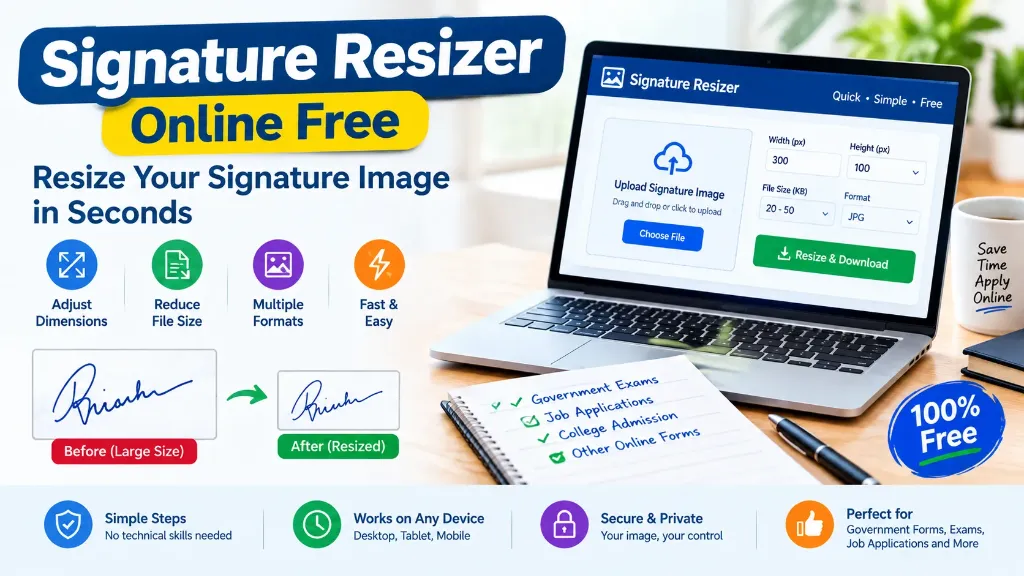
Need to resize your signature image for a government exam, job application, college admission or online registration? A signature that looks clear on paper may not meet the file size or image dimensions required by an online application form.
With a signature resizer online free, you can prepare your signature image for uploading without installing image-editing software. You can adjust its dimensions, reduce the file size when needed and save a copy that is easier to use for online applications.
Whether you are applying for a government job, filling out a university form or completing another online registration, this guide will help you prepare your signature correctly.
Resize Your Signature Online for Free
Ready to resize your signature image? Use our free online tool to prepare your signature for an online application:
👉 Open the Free Signature Resizer Tool
Upload your signature image, enter the required dimensions or file-size limit, and download the processed image using the options available in the tool. Always check the final image before uploading it to an application portal.
What Is a Signature Resizer Online Free Tool?
A signature resizer is an online utility that helps you change the dimensions of a digital signature image. Depending on its features, it may also help reduce the file size or save the image in a supported format.
For example, you may have scanned your signature and saved it as a large JPG image. An examination portal may require a smaller image with specific width, height and file-size limits.
Instead of editing the image manually, you can use a signature resizing tool to prepare a more suitable version.
A signature resizer can be useful for:
- Government examination application forms (such as SSC exams, UPSC civil services, and UPPSC state exams)
- Railway and banking recruitment applications (including RRB Railway exams and IBPS Banking exams)
- Common Service Centres assisting citizens (see our guide on CSC VLE Online Form Filling Services)
- College and university admission forms
- Scholarship applications
- Job application portals
- Online registration forms (refer to our Online Govt Exam Form Filling Guide)
- Other websites that request a scanned signature
The important point is that resizing changes the image, not the signature itself. You should use your genuine signature and ensure that the finished image follows the instructions of the organization receiving it.
How to Resize a Signature Image Online for Free
You do not need advanced photo-editing skills to prepare a signature image. Follow these steps to get started:
Step 1: Prepare Your Signature Image
If you have not created a digital signature yet, sign on a clean white sheet of paper using a dark pen.
Scan the paper or take a clear photograph in good lighting. Make sure the complete signature is visible and that there are no shadows, folds or unnecessary marks.
Save the image in a common format accepted by your application portal.
Step 2: Open the Signature Resizer Tool
Visit the free signature resizer using the tool link.
Choose the option to upload or select an image. Depending on the tool, you may be able to select an image from your computer, mobile phone or tablet.
Choose the correct signature file rather than uploading your photograph or another document.
Step 3: Check the Required Dimensions
Before changing the image, read the application guidelines carefully.
Some portals specify the width and height in pixels, while others give dimensions in centimetres or millimetres. If your resizing tool accepts pixel values, use the values specified by the portal or convert the physical dimensions according to the required resolution.
Do not select random dimensions simply because they appear suitable.
Step 4: Reduce the File Size if Necessary
An image can have the correct dimensions but still exceed the permitted file size.
If your application requires a smaller file, use the compression or file-size controls available in the tool, if provided.
Avoid excessive compression. A very small file may make your signature blurred or difficult to read.
Step 5: Choose the Required File Format
Check whether the application accepts JPG, JPEG or PNG.
JPG and JPEG are common choices for scanned signature images. PNG can be useful when preserving sharp edges or transparency is important, but it may produce a larger file in some cases.
Your application’s instructions should determine the final format.
Step 6: Download and Inspect the Result
Download the resized image and open it before uploading it anywhere.
Check the following:
- The entire signature is visible.
- The writing is clear and readable.
- The image is not stretched or distorted.
- The dimensions match the application requirements.
- The file size is within the permitted range.
- The image format is accepted by the portal.
Once everything matches, you can upload the image to the relevant application.
What Is the Correct Signature Size for Government Exam Forms?
There is no single signature size that works for every government examination or online application.
Different recruitment authorities may specify different image dimensions, formats and file-size limits. Requirements can also change between recruitment cycles.
For example, an official SSC recruitment notification specifies a scanned signature in JPEG or JPG format between 10 KB and 20 KB, with approximate dimensions of 6 cm wide by 2 cm high. This is an example for that particular recruitment notice, not a universal rule.
Before using a signature resizer, check the relevant application instructions:
| Requirement | What you should check |
|---|---|
| Image width | Required width in pixels or physical units |
| Image height | Required height in pixels or physical units |
| File size | Minimum and maximum size in KB |
| File format | Whether JPG, JPEG, PNG or another format is accepted |
| Image clarity | Whether the complete signature is readable |
| Background | Whether a plain or specific background is required |
| Signature orientation | Whether the signature must be horizontal |
If the portal requires a signature between a minimum and maximum file size, staying within that range is important. A file that is too large or too small may fail the upload requirements.
How to Reduce Signature Image Size Without Losing Clarity
One common problem is reducing the file size so much that the signature becomes unreadable.
The goal should be to create a compact image while preserving the original writing as clearly as possible.
Here are some practical tips:
- Start with a clear original image: A poor-quality scan cannot always be repaired through resizing. Use a clean image with dark, visible handwriting.
- Crop unnecessary blank space: Removing excessive margins can make the signature easier to position and can sometimes reduce the amount of image data.
- Use appropriate dimensions: Avoid uploading an unnecessarily large image when the form requests a much smaller one.
- Compress gradually: If the first compressed image is still too large, reduce the file size in small steps where the tool permits it. Inspect the result each time.
- Avoid excessive stretching: Changing the width and height disproportionately can distort the signature. Preserve its proportions unless the official instructions require otherwise.
For more information about image formats and their properties, see the MDN guide to image file types.
Common Signature Resizing Problems and Their Solutions
Sometimes an image still fails to upload even after it has been resized. The issue may be related to the file format, dimensions, size or clarity.
| Problem | Possible reason | What to try |
|---|---|---|
| Signature image is too large | File size exceeds the portal limit | Compress the image while preserving readability |
| Signature image is too small | File size is below the permitted minimum | Adjust the export settings if supported |
| Upload shows an invalid format error | The file type is not accepted | Save or export the image in an accepted format |
| Signature looks miniature | The writing occupies too little of the image | Crop excess blank space and review dimensions |
| Signature appears blurred | Poor original scan or aggressive compression | Use a clearer original and reduce compression |
| Image is stretched | Width and height were changed disproportionately | Preserve the original proportions where possible |
| Portal rejects the image despite correct size | Another requirement may be unmet | Review the official upload instructions again |
If you encounter persistent rejections, read our dedicated guide on Government Exam Form Rejected Due to Signature: Reasons and Solutions for actionable solutions to common rejection codes and correction window procedures.
Can I Resize a Signature Image on My Mobile Phone?
Yes. You can prepare a signature image on a smartphone using a compatible online resizing tool like our free Signature Resizer Tool.
This is useful for students and job applicants who do not have access to a desktop computer.
Follow these steps:
- Scan or photograph your signature clearly.
- Open the signature resizer in your mobile browser.
- Select the image from your device.
- Enter the required dimensions and size settings, where supported.
- Download the processed image.
- Open the downloaded file and check its clarity.
If the file is saved in your phone’s download folder, you can usually select it from there when uploading your application. Keep a copy of the original image until your application has been submitted successfully.
Is a Free Online Signature Resizer Safe to Use?
A signature image is personal information, so it is worth considering privacy before using any online tool.
Before uploading your image, read the website’s privacy policy to understand how the tool handles uploaded files. Our Signature Resizer Tool processes images locally right inside your web browser using HTML5 Canvas, ensuring your image data is never uploaded to an external server.
For better privacy, follow these precautions:
- Use a trusted website with a clear privacy policy.
- Avoid uploading signature images on public or shared devices when possible.
- Do not share your application password or OTP with a tool provider.
- Download only the image you intended to create.
- Remove unnecessary copies from shared devices after use.
- Keep your original signature file in a private location.
A signature resizer should only be used to prepare your image. It should not be used to create a misleading signature or alter an official document.
Why Use an Online Signature Resizer Instead of Manual Editing?
Manual image editing can work, but it may be difficult for beginners who only need to change a few settings.
An online signature resizer can make the process more convenient:
| Online signature resizer | Manual image editing |
|---|---|
| Designed for quick signature preparation | Requires knowledge of image-editing controls |
| May provide direct dimension settings | Dimensions may need to be entered manually |
| May include file-size compression options | Compression controls depend on the software |
| Often works in a browser | May require installed software |
| Convenient for occasional use | Useful for more advanced editing tasks |
The best option depends on your needs. If you only need to prepare a signature for an online form, a simple resizing tool may be enough.
However, always check which features the particular tool actually provides.