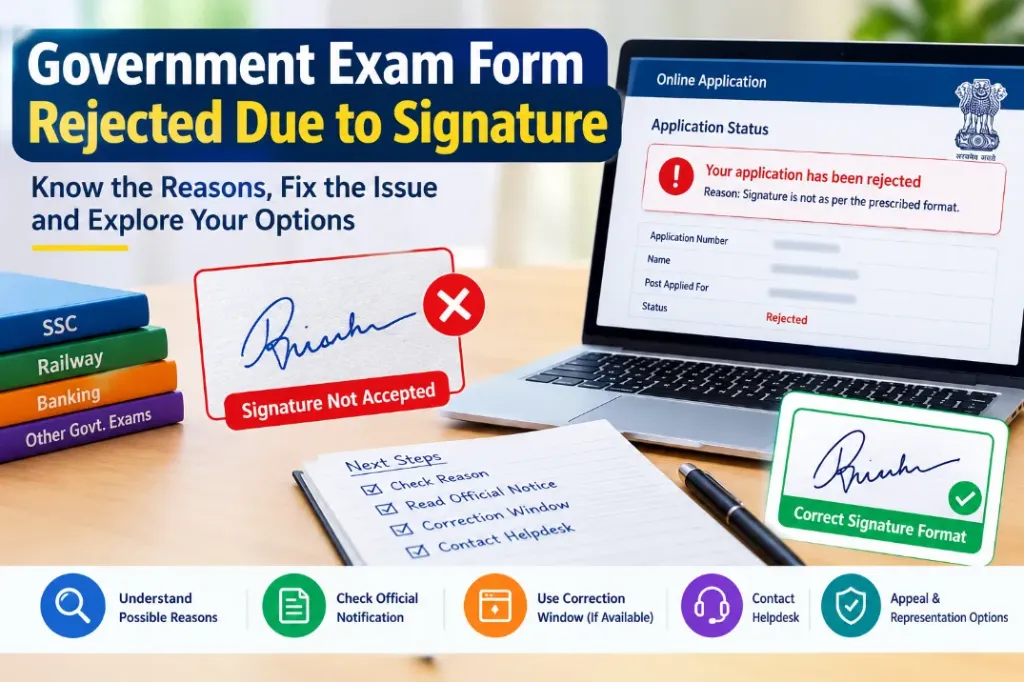
Have you received a message saying your government exam form was rejected due to signature issues? Do not panic. A signature-related rejection can happen when an uploaded image does not meet the recruitment authority’s requirements, is difficult to read, or fails the prescribed format and size rules.
For candidates preparing for competitive examinations, such as SSC, railway, banking, state government and other recruitment exams (see our online govt exam form guide), an application rejection can be stressful. You may worry about losing the application fee, missing the examination, or having to wait for the next recruitment cycle.
The good news is that the next step depends on the rejection status and the rules of the particular examination. Some recruitment authorities provide a correction window, while others may not permit changes after the application deadline.
In this guide, you will learn why a government exam form gets rejected due to signature issues, how to check the actual reason, and what steps you can take to resolve the problem.
Why Was My Government Exam Form Rejected Due to Signature?
A government exam application may be rejected when the uploaded signature does not follow the instructions given in the official recruitment notification.
Common reasons include:
- The signature image is too small or miniature.
- The scanned signature is blurred or unclear.
- The file size is outside the permitted range.
- The image format is incorrect.
- The signature is cropped or partly missing.
- The signature background makes it difficult to read.
- The candidate has uploaded the wrong document.
- The image does not follow the prescribed dimensions.
- The recruitment authority cannot properly verify the submitted signature.
Not every examination follows the same signature requirements. For example, an SSC recruitment notice may specify a particular JPEG file size and image dimension. Another recruitment authority may use a different specification.
Therefore, do not assume that the requirements of one government exam apply to every other examination.
Common Reasons for Signature Rejection in Government Exams
Understanding the exact problem is the first step towards finding a solution.
| Reason for rejection | What it means | What you should do |
|---|---|---|
| Blurred signature | The writing is not clearly visible | Scan the signature again with better clarity |
| Miniature signature | The signature appears too small in the uploaded image | Prepare the image according to the prescribed dimensions |
| Incorrect file size | The image is larger or smaller than the permitted limit | Resize or compress the file without making it unreadable |
| Wrong image format | The portal does not accept the uploaded file type | Convert the image to an accepted format |
| Cropped signature | Part of the signature is missing | Scan the complete signature again |
| Incorrect dimensions | The image width or height does not meet the requirements | Set the dimensions according to the official notice |
| Wrong document uploaded | The image contains a photograph, blank page or another document | Upload the correct signature image if corrections are permitted |
| Poor contrast | The signature blends into the background | Use a clean background and dark, clearly visible ink |
1. Your Signature Image Is Too Small
A miniature signature is one possible reason for application rejection. When a signature is reduced too much, the individual letters and strokes can become difficult to recognise.
Even if your original signature is clear, it may become unreadable after resizing or compressing the image, triggering an invalid image dimensions error in exam form.
How to fix it: Check the required image dimensions in your recruitment notification. Prepare the signature within those limits and make sure the writing remains readable when viewed at its actual display size. Avoid stretching the image excessively to meet the dimensions because this can distort your signature.
2. Your Signature Is Blurred or Unclear
A low-quality scan can make a signature look unclear. This may happen when the paper moves during scanning, the camera is out of focus, or the image is compressed too aggressively.
How to fix it: Sign on clean white paper with a dark pen (see our guide on black ink or blue ink for government exam signature). Scan the paper in good lighting and ensure the writing is sharp to prevent issues where the signature image is not clear in application form. Before uploading, open the final image and check that every part of your signature is visible.
3. The Signature File Size Is Incorrect
Online application portals frequently impose minimum and maximum file-size limits.
Suppose an examination requires a signature image between 10 KB and 20 KB. An image of 8 KB or 25 KB would not meet that particular requirement. If your photo signature file size exceeds the limit, the portal will reject the submission. These figures are only an example. Your examination may specify a different range.
How to fix it: Read the exact file-size instructions and adjust the image accordingly. Do not compress the image so much that the signature becomes blurred or miniature.
4. You Uploaded the Wrong Image Format
Some recruitment portals accept JPEG or JPG images, while other application systems may specify a different format. Changing the filename extension alone does not convert an image into the required format.
How to fix it: Open the image in a reliable image editor and export or save it in the format accepted by the portal. Reopen the resulting file to confirm that it works correctly.
5. Your Signature Is Cropped or Improperly Positioned
A signature may become difficult to verify when the image cuts off the beginning or end of the writing. Excessive blank space can also make the signature appear too small within the permitted image area.
How to fix it: Keep the entire signature visible and position it according to the official instructions. Leave enough space around the writing without making the signature occupy only a tiny portion of the image.
What to Do If Your Government Exam Form Is Rejected Due to Signature
Follow these steps before deciding whether you need to submit a complaint or wait for another examination opportunity.
Step 1: Check the Application Status
- Log in to the official recruitment portal using your registration credentials.
- Look for your application status, rejection message, scrutiny result or any notification related to document verification.
- Read the exact wording carefully. A form marked as incomplete, defective, rejected or pending verification may require different action.
- Do not rely only on an SMS or an unofficial website. Check whether the same information appears in your candidate dashboard or an official notice.
Step 2: Read the Official Recruitment Notification
Open the notification for the exact examination you applied for. Find the section covering scanned signatures, uploaded documents, application correction and rejection conditions.
Check these details:
- Permitted image format
- Minimum and maximum file size
- Prescribed image dimensions
- Signature quality and visibility requirements
- Correction window dates
- Rules for rejected or defective applications
- Official helpdesk or grievance procedure
For an example of an official source, read the SSC MTS 2025 recruitment notification. It explains signature image requirements for that particular examination. For common issues faced by applicants, check our guide on SSC MTS signature image rejected. Always follow the notification for your own exam, as specifications can change between recruitment cycles.
Step 3: Check Whether a Correction Window Is Available
A correction window is a limited period during which eligible candidates may edit certain details in their submitted applications.
If the recruitment authority provides this facility, check whether signature replacement is permitted. Some correction windows allow changes to uploaded images, while others restrict which fields can be modified.
If the window is open and signature correction is allowed, prepare the correct image before making the change. Submit the correction before the deadline and save the updated confirmation page or acknowledgement.
Important: A correction window does not automatically guarantee that a rejected application can be restored. Check the applicable rules before relying on this option.
Step 4: Contact the Official Helpdesk
If you cannot identify the reason for rejection, contact the recruitment authority through the official communication channel mentioned in the notification.
Include the following information where requested:
- Examination name
- Registration or application number
- Rejection message
- Date you checked the status
- A short explanation of the problem
Ask whether the signature issue can be corrected and whether any formal representation procedure is available. Never share your password, OTP or unnecessary personal documents in an email or message. Use only the official portal and verified contact details.
Step 5: Save All Relevant Evidence
Keep copies of your submitted application, payment receipt, rejection message, correction-window notice and communication with the helpdesk.
These records can help you explain the situation if the recruitment authority permits a grievance or representation. However, submitting evidence does not guarantee that the authority will accept your request.
Can I Correct My Signature After Submitting the Application Form?
It depends on the examination authority and the stage of the application process.
If the official correction window is open and the signature field is editable, you may be able to replace the image by following the prescribed procedure.
However, once the correction period ends, changes may no longer be permitted. Some recruitment notices explicitly state that modification requests received after the deadline will not be entertained.
If your application has already been rejected, check whether the authority allows a grievance, representation or review. Do not assume that a regular correction window and an appeal process are the same thing.
Before submitting a new application, read the instructions about duplicate applications. Some examinations may cancel earlier applications or impose restrictions on multiple submissions.
How to Prepare a Signature Image to Avoid Rejection
Preparing the image correctly before uploading can reduce the risk of avoidable errors.
Follow this checklist:
- Take a clean white sheet of paper.
- Write your signature clearly using a dark pen.
- Avoid unnecessary marks, shadows and smudges.
- Scan the complete signature in good lighting.
- Crop the image carefully without cutting off any strokes.
- Check the required dimensions stated in the notification.
- Adjust the file size to the permitted range.
- Save the image in the correct file format.
- Open the final image and inspect its clarity.
- Preview the uploaded signature before submitting the application.
If you use an online signature resizer, make sure it supports the dimensions and file-size requirements of your examination.
Remember that a technically correct image is not the same as an officially accepted application. The recruitment authority makes the final decision according to its rules.
How Can a Signature Resizer Tool Help?
Using a dedicated free online signature resizer can simplify the image preparation process by helping you adjust dimensions and file size before uploading.
Depending on the available features, you may be able to:
- Resize the signature to the required width and height.
- Compress the image to meet the permitted file-size limit.
- Prepare the image in the specified format.
- Check the signature before submitting it to the recruitment portal.
For example, if a recruitment notice requires a JPEG signature within a particular size range, you can use a compatible tool to prepare the image before opening your application form.
Always verify the final output against the latest official instructions. Do not upload an image simply because a tool labels it as exam-ready.
Can I Appeal If My Government Exam Form Is Rejected Due to Signature?
You may be able to submit a representation if the recruitment authority provides an official process for doing so.
First, read the rejection notice and the relevant examination rules. Then check whether a grievance facility, helpdesk or designated regional office handles application-related complaints.
In your representation, explain the issue clearly, provide the relevant application details and ask whether any correction or review is permitted. Keep your message factual and polite. Attach supporting documents only when requested or permitted by the official process.
If the notification states that applications cannot be corrected after the deadline, an appeal may not result in the application being accepted. The outcome depends on the applicable rules and the authority’s decision.
Do not pay unofficial agents who promise to reverse an application rejection or guarantee acceptance.