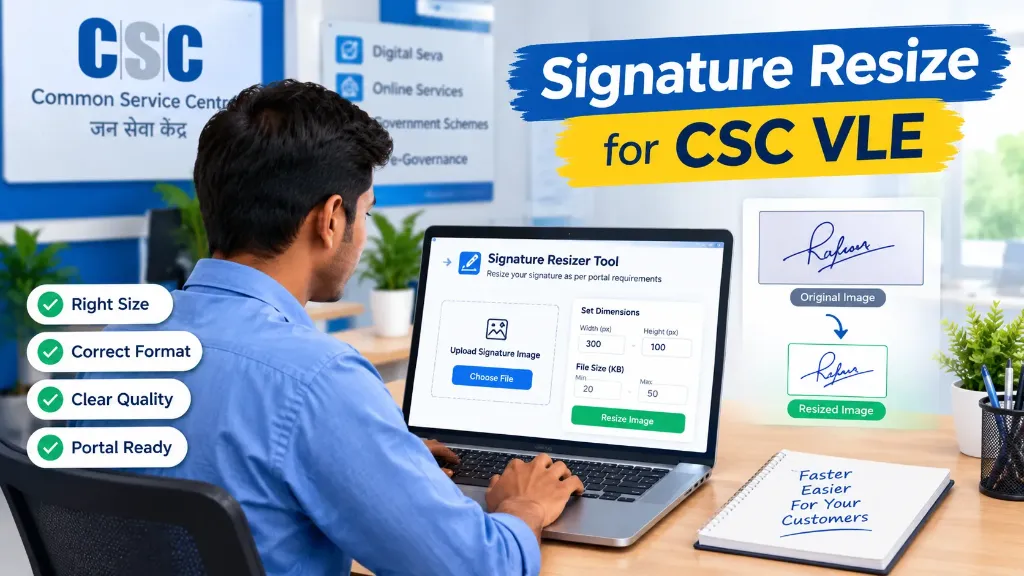
Common Service Centre operators help people access various digital services, complete online applications, and submit documents through different portals. One small but important task is preparing a customer’s signature image in the correct format and size.
If you are looking for signature resize for CSC VLE, the process is usually straightforward. You need a clear image of the customer’s original signature, the image specifications mentioned on the relevant portal, and a suitable tool to adjust the file.
However, there is one important point to remember: every government portal may have different upload requirements. A signature image accepted by one recruitment website might not meet the requirements of another.
This guide explains how CSC VLEs can resize signature images, check portal-specific specifications, avoid common upload errors, and help customers submit readable signature images. If you also offer comprehensive form submission support, consult our CSC VLE Online Form Filling Services Guide.
Why Is Signature Resizing Important for CSC VLEs?
A digital signature image helps connect an online application with the signature provided by the applicant. During application processing, the portal may validate the uploaded image against specific technical requirements.
If the image does not meet those requirements, the website may reject the file or ask the applicant to upload it again.
For CSC VLEs, preparing the image correctly can help reduce repeated uploads and save time when assisting customers.
The most common reasons for resizing a signature include:
- The image file exceeds the permitted size in KB.
- The image dimensions do not match the required width and height.
- The uploaded file uses an unsupported image format.
- The signature appears too small or blurry after resizing.
- Excessive blank space makes the actual signature difficult to see.
- The portal displays an error while uploading the image.
The objective is not simply to create a smaller file. It is to prepare a readable signature image that meets the relevant portal’s instructions.
What Is the Correct Signature Size for CSC VLE?
There is no single signature size that applies to every service accessed through a CSC. Requirements depend on the particular government department, recruitment authority, examination, or application portal.
Some websites specify the signature’s width and height in pixels. Others provide dimensions in centimetres or millimetres. File size may be expressed in KB, and the accepted format may be JPG, JPEG, or another specified type.
For example, the official ISRO URSC recruitment instructions list preferred signature dimensions of 140 × 60 pixels and a maximum file size of 50 KB for that recruitment application. The DGCA Pariksha FAQ gives a different specification for its candidate signature image.
Similarly:
- In SSC CGL 2026, the requirement is strictly 10 KB to 20 KB with specific centimetre dimensions.
- In UPSC CSE 2026, candidates must sign 3 times vertically with dimensions of 350 to 500 pixels and 20 KB to 100 KB.
- In IBPS PO 2026, preferred dimensions are 140 × 60 pixels and 10 KB to 20 KB.
These examples demonstrate why CSC VLEs should check the exact requirements for the application they are completing.
Signature Image Requirements Checklist
| Requirement | What to check |
|---|---|
| File size | Minimum and maximum KB allowed |
| Image dimensions | Required width and height in pixels or centimetres |
| Image format | JPG, JPEG, PNG, or another accepted format |
| Signature quality | Whether the signature remains clear and readable |
| Background | Whether a plain or white background is required |
| Orientation | Whether the signature must be horizontal |
| Original signature | Whether the image represents the applicant’s genuine signature |
Important: Do not use the values from another portal as a universal standard. Always follow the latest application instructions or official notification for the service being processed.
How to Resize a Signature for CSC VLE Applications
A dedicated online signature resizing tool can make this task easier, particularly when you regularly assist customers with online applications.
Follow these steps to prepare the image:
Step 1: Check the Portal’s Official Instructions
Before editing the image, open the application portal and find its photo and signature upload guidelines.
Look for the following details:
- Minimum and maximum file size
- Required image width and height
- Accepted file format
- Background and clarity requirements
Some portals display these details directly beside the upload button. Others provide them in a notification, help page, or application instructions PDF.
Keep the specifications available before starting the resizing process. This avoids unnecessary trial and error.
Step 2: Obtain a Clear Image of the Customer’s Signature
Ask the customer to sign on clean white paper using the type of ink recommended by the relevant portal.
Black or dark blue ink on white paper often provides good contrast, but the portal’s instructions should take priority.
You can capture the signature using a scanner or a mobile camera:
- Keep the paper flat on a clean surface.
- Use sufficient, even lighting.
- Avoid shadows and reflections.
- Hold the camera steady and parallel to the paper.
- Ensure that the signature is completely visible.
A clear source image is easier to resize without losing important details. If the resulting image appears faint or blurred, follow our tips on how to fix signature image not clear in application form.
Step 3: Open an Online Signature Resizer
Once the original image is ready, open your preferred image resizing tool.
You can use our free Signature Resizer Online Tool to prepare the image for uploading.
Select the original image from the computer or device. Check that you have chosen the correct file before continuing.
If you use a shared CSC computer, confirm that the image belongs to the correct customer. This is especially important when several applicants are being assisted on the same day.
Step 4: Enter the Required Dimensions
Enter the exact width and height specified by the target application portal.
For example, if the instructions require a particular width and height in pixels, use those values rather than choosing dimensions based on appearance alone.
If the portal specifies measurements in centimetres or millimetres, check whether the instructions also mention pixel dimensions or image resolution.
Avoid stretching the signature disproportionately. A signature that has been compressed or expanded unevenly may look unnatural or become difficult to read. The resized image should preserve the original signature’s appearance.
Step 5: Adjust the File Size
After adjusting the dimensions, check the resulting file size.
If the file is too large, reduce image quality slightly or use an appropriate compression option.
If the portal specifies a minimum file size as well as a maximum, ensure that the final file falls within that range. For example, a requirement of 20 KB to 50 KB means that a file smaller than 20 KB may still be rejected, even though it is below the maximum.
Do not reduce the file size repeatedly without checking its visual quality. Excessive compression can create rough edges, faded strokes, or blurred details. For detailed guidelines, read our Signature Resizer Online Free Guide.
Step 6: Download and Verify the Image
Download the processed image to the appropriate location.
Before uploading it to the application portal, check these details:
- The signature is clearly visible.
- The image is not stretched or cut off.
- The file size meets the required limit.
- The dimensions are correct.
- The format is accepted by the portal.
- The file opens correctly on the computer.
Rename the image with a simple, descriptive filename if necessary (e.g., customer-signature.jpg). Avoid unnecessary special characters when the portal provides filename restrictions.
Step 7: Upload and Preview the Signature
Return to the application portal and upload the prepared image in the signature field.
If a preview is available, examine the signature carefully. Make sure the image has not become too small, faint, or distorted after processing.
If the portal reports an error, compare the image’s actual properties with the requirements again. If you encounter errors, refer to our troubleshooting guide on Signature Upload Failed in Online Application Form: Causes and Solutions.
A successful upload does not necessarily mean the entire application has been accepted. Review the remaining information and follow the portal’s final submission procedure.
How to Check Signature Dimensions and File Size
CSC VLEs do not always need advanced image editing software to inspect a signature file. On a Windows computer, you can use File Explorer to check the file’s basic properties:
- Open the folder containing the signature image.
- Right-click the file.
- Select Properties to view its size and file details.
- Select the Details tab to see dimensions in pixels.
- Open the image in a suitable image viewer or editor to inspect its visual appearance.
Remember that changing a filename extension does not convert an image. Renaming a PNG file to .jpg will not make it a genuine JPEG image. Use an image editor or converter when a format change is required.
Common Signature Upload Errors and Their Solutions
| Upload problem | Possible reason | What to do |
|---|---|---|
| File size too large | Image exceeds the maximum KB limit | Reduce file size using suitable compression |
| File size too small | Image falls below the minimum limit | Adjust export settings without damaging clarity |
| Invalid image dimensions | Width or height does not match instructions | Resize using the specified pixel dimensions |
| Unsupported file format | The portal does not accept the selected format | Export the image in an accepted format (JPG/JPEG) |
| Signature appears blurry | Source image was unclear or compression excessive | Prepare a clearer source image and resize again |
| Signature appears too small | Excessive blank space or incorrect proportions | Crop unnecessary margins while preserving the full signature |
| Upload keeps failing | Wrong file selected, browser issue, or portal problem | Verify the file, retry carefully, and consult official portal support |
If a correctly prepared image continues to fail, check the portal’s help section or contact its official support team. The problem may not be related to the image itself. For broader prevention strategies, consult our guide on Government Exam Form Rejected Due to Signature: Reasons and Solutions.
Best Practices for CSC VLEs Handling Customer Signatures
Preparing a signature image involves more than meeting technical specifications. VLEs should also handle customer documents carefully and preserve the authenticity of the signature:
Preserve the Original Signature
Resize, crop, or compress the image only as needed for the application.
Do not redraw the signature, imitate a customer’s handwriting, add strokes, or otherwise change the signature’s content. The purpose of image processing is to prepare the original signature for digital submission, not to create a different one. If the signature is unreadable, ask the customer to provide a clearer original signature on clean paper.
Double-Check Every Application
Do not assume that two applications have the same requirements, even when they belong to the same department.
Check the current notification or portal instructions before processing a signature, especially when a recruitment cycle or application system has changed. Review our complete checklist on Documents Required for Government Job Online Application to guide your applicants effectively.
Protect Customer Information
A customer’s signature is personal information that deserves careful handling:
- Use the image only for the intended service.
- Avoid sharing it through unnecessary messaging channels or public folders.
- Do not retain unnecessary copies after the work is complete.
- When using an online resizing service, review its privacy policy and understand how uploaded files are processed.
Check the Final Preview With the Customer
Before the application is finally submitted, allow the customer to review the uploaded signature when the portal provides a preview.
Confirm that the correct image has been uploaded and follow the portal’s instructions for reviewing and submitting the application. For a complete guide on assisting citizens through various competitive forms, read our Online Govt Exam Form Guide.
For more information about Common Service Centres and their digital service ecosystem, visit the official CSC website.