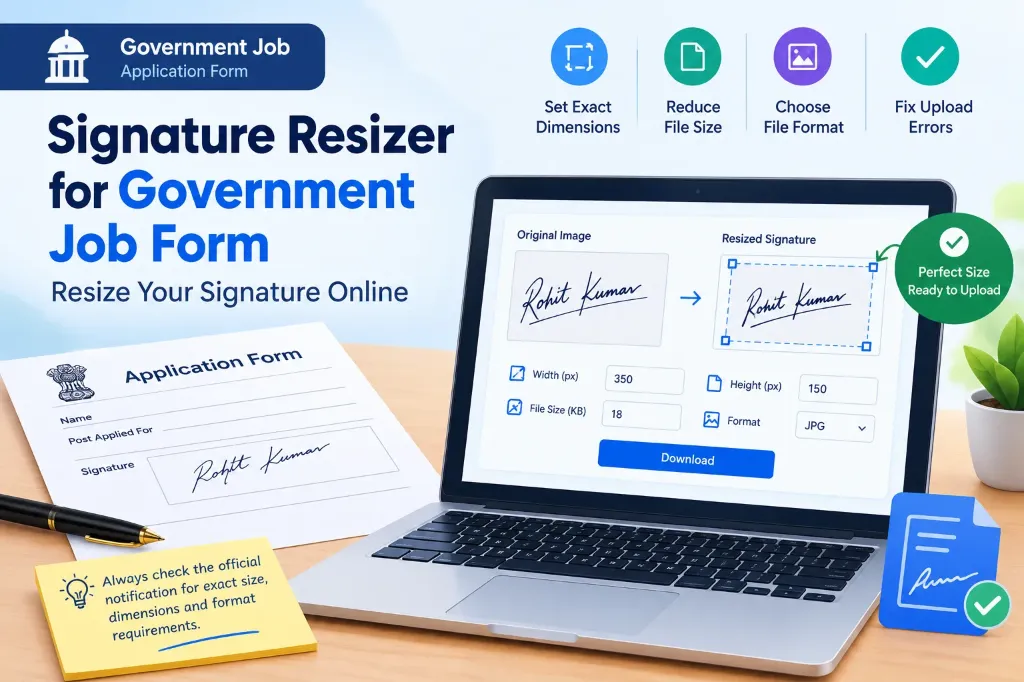
Applying for a government job online can feel simple until you reach the signature upload section. You select your signature image, upload it, and suddenly the application portal shows an error. Sometimes the file is too large, the dimensions are incorrect, or the signature appears too small to read.
If you are facing any of these problems, a signature resizer for government job form can help you prepare your signature image according to the recruitment authority’s requirements.
However, resizing a signature is not just about reducing its file size. You also need to check the required image dimensions, file format, image clarity, and other instructions mentioned in the official recruitment notification.
In this guide, you will learn how to resize your signature online, prepare a clear signature image, fix common upload errors, and check the final file before submitting your government job application.
What Is a Signature Resizer for Government Job Forms?
A signature resizer is an online tool that helps you adjust the dimensions and file size of a signature image. It can be useful when applying for SSC, UPSC, railway recruitment, banking examinations, state government jobs, and other competitive examinations.
Depending on the tool, you may be able to:
- Resize a signature to the required width and height in pixels.
- Reduce the image file size to fit a specified KB limit.
- Crop unnecessary white space around the signature.
- Convert an image into the required JPG or JPEG format.
- Preview the resized signature before downloading it.
The main purpose is to prepare an existing, genuine signature image for uploading to an application portal.
Important: Every recruitment authority may have different requirements. Do not assume that one signature size will work for every government job form.
Check the Official Signature Requirements Before Resizing
Before using a signature resizer, open the official recruitment notification or the instructions provided on the application website.
Look for a section called Photograph and Signature Specifications, Uploading Documents, or Guidelines for Scanning and Uploading Documents.
Check these four requirements carefully:
| Requirement | What you need to check |
|---|---|
| Image dimensions | Required width and height in pixels or centimetres |
| File size | Minimum and maximum size in KB |
| File format | JPG, JPEG, or another specified format |
| Signature quality | Ink colour, background, clarity, and handwriting rules |
Some application portals also specify scanning resolution, physical dimensions, or additional instructions.
Do All Government Job Forms Require the Same Signature Size?
No. Different examinations can have different specifications, and requirements may change between recruitment cycles:
- In UPSC CSE 2026, instructions specify dimensions between 350 × 350 pixels and 1000 × 1000 pixels with a file size of 20 KB to 100 KB, with 3 signatures vertically arranged.
- In SSC CGL 2026, paragraph 9.6 requires a file size strictly between 10 KB to 20 KB with approximate centimetre dimensions.
- In IBPS PO 2026, the preferred signature size is 140 × 60 pixels and 10 KB to 20 KB.
These are examples, not universal rules. Always follow the instructions for your particular examination. You can verify requirements directly through the official UPSC Online Application FAQ.
How to Use a Signature Resizer for Government Job Form
Once you know the required specifications, you can prepare your image using an online signature resizer.
Follow these step-by-step instructions:
Step 1: Prepare Your Original Signature Image
Start with a clear image of your actual signature.
If you have not created a digital copy yet, follow the instructions in your recruitment notification. In many recruitment processes, candidates are instructed to sign on plain white paper using black ink and then scan the signature:
- Use sufficient lighting when scanning or photographing the paper.
- Keep the paper flat.
- Make sure the complete signature is visible.
- Avoid shadows, glare, and unnecessary marks.
- Check that the signature is not blurred or smudged.
If you use a phone camera, hold it directly above the paper and keep the camera steady.
Step 2: Open the Signature Resizer Tool
Open our free Signature Resizer Online Tool directly in your web browser.
Choose the option to upload or select an image from your device. Find the original signature image saved on your computer or mobile phone.
Before uploading, check that you have selected the correct file. You should use your own genuine signature rather than an image belonging to another person.
Step 3: Crop the Unnecessary White Space
Sometimes a scanned signature contains a large area of blank paper around the handwriting. This can make the signature appear too small after uploading.
Use the crop option to remove unnecessary empty space around the signature:
- Keep the entire signature inside the cropped area.
- Do not cut off the beginning, ending, or any part of the handwriting.
- Leave enough space around the signature to maintain a natural appearance.
Cropping is particularly useful when your signature looks tiny even though the image dimensions seem correct.
Step 4: Enter the Required Width and Height
Now check the pixel dimensions specified in the recruitment notification.
If your examination requires a particular width and height, enter those values into the resizer. For example, if the official instructions require 140 × 60 pixels, enter those exact dimensions.
Do not select a sample size simply because it is commonly used for another examination. Also, avoid stretching the signature disproportionately. The image should retain its natural appearance and remain easy to read.
Step 5: Adjust the File Size
After setting the dimensions, check the file size:
- Some application portals reject images that exceed the maximum KB limit.
- Others require the file to remain above a minimum size.
- If your image is too large, use smooth compression settings to bring it within limits.
- If the file is below the required minimum, re-export a clear original image using suitable quality settings.
Remember that image dimensions and file size are two different things. A signature can have the correct pixel dimensions but still exceed the permitted file size. For deeper insights, consult our Signature Resizer Online Free Guide.
Step 6: Select the Required Image Format
Check which image formats the application portal accepts.
If it requires JPG or JPEG, export your image in that format using the appropriate converter feature.
Caution: Changing the file extension alone does not convert an image. Renaming a PNG file to end in
.jpgdoes not make it a genuine JPEG image. Use our genuine image converter instead.
Step 7: Download and Review Your Resized Signature
Once the settings are correct, generate and download the resized image.
Before uploading it to the recruitment portal, check:
- The signature is fully visible.
- The handwriting is clear and readable.
- The background does not make the signature difficult to see.
- The pixel dimensions match the official requirements.
- The file size falls within the permitted range.
- The file format is correct.
If the application portal provides a preview, inspect it carefully before confirming the upload.
Common Signature Image Requirements Explained
The following table explains the types of specifications you may encounter:
| Specification | What it means |
|---|---|
| Width and height | The image’s dimensions in pixels or centimetres |
| File size in KB | The amount of storage space the image occupies |
| JPG or JPEG | A supported image file format when specified |
| DPI | Dots per inch, a measure of image resolution for printing and scanning |
| White background | A background commonly requested in signature scanning instructions |
| Clear handwriting | The signature must remain distinguishable and readable |
One important point is that DPI and pixel dimensions are related but not interchangeable. A file can have the required pixel dimensions while having a different DPI value. If the recruitment notice specifies both, verify both.
How to Fix Common Government Job Signature Upload Errors
Even after resizing an image, you may encounter an error. Here are common problems and their solutions:
1. Signature File Size Is Too Large
- Why it happens: The image exceeds the maximum permitted file size.
- How to fix it: Use an image compression option or export the image with an appropriate quality setting. Recheck the final file size before uploading. Avoid excessive compression that harms readability.
2. Signature Dimensions Are Incorrect
- Why it happens: The image width or height does not match the recruitment portal’s requirements.
- How to fix it: Check the official instructions again and enter the correct dimensions in pixels. Download a fresh copy and verify its properties in File Properties.
3. Signature Is Blurry After Resizing
- Why it happens: The original image may be blurry, poorly lit, or too small.
- How to fix it: Start with a better scan or photograph. Crop the image carefully and avoid excessive enlargement or compression. For full solutions, read our guide on how to fix signature image not clear in application form.
4. Signature Upload Shows an Invalid Format Error
- Why it happens: The file format is not supported, even if the extension looks correct.
- How to fix it: Open the image in an editor or use a genuine converter to export it in the required JPG/JPEG format.
5. Signature Looks Too Small in the Preview
- Why it happens: The image contains too much blank space around the handwriting.
- How to fix it: Crop unnecessary margins while keeping the entire signature visible. Resize the cropped image according to official dimensions.
6. Signature Does Not Match the Required Instructions
- Why it happens: The signature may use the wrong ink colour, contain capital letters where prohibited, or fail another recruitment-specific condition.
- How to fix it: Read original instructions carefully. If your form is rejected, consult our detailed analysis on Government Exam Form Rejected Due to Signature: Reasons and Solutions. If upload keeps failing, see our troubleshooting guide on Signature Upload Failed in Online Application Form.
Tips for Preparing a Clear Signature Image
Follow these practical tips before uploading your signature for a government job application:
- Use a clear original: A good scan is easier to resize than a blurry photograph.
- Keep complete handwriting visible: Do not crop off any part of the signature.
- Avoid excessive compression: Very low image quality can make handwriting difficult to recognise.
- Follow specified ink colour: Use the ink colour mentioned in the official instructions (commonly black).
- Keep signature consistent: Your uploaded signature should match the one you use during document verification and exam day.
- Check final preview: Confirm that the image remains readable after upload.
- Save a copy: Keep original and resized versions in a separate folder until the recruitment process ends.
Make sure you have all other required certificates ready before starting by consulting our Documents Required for Government Job Online Application Checklist. If you operate a centre assisting applicants, read our Signature Resize for CSC VLE Guide.
Why Checking the Official Notification Matters
A signature resizer can help you meet technical image requirements, but it cannot determine every rule for every recruitment process.
The official notification is the most reliable place to confirm the permitted file size, dimensions, format, ink colour, and other conditions.
For example, the UPSC online application FAQ explains that candidates should check the properties of their photograph and signature and resize them according to the specifications provided in the application instructions.
Read the relevant notification before using a preset in any image tool. If the portal’s instructions differ from a general online guide, follow the official instructions for your application. You can also visit the official UPSC website or the relevant recruitment authority’s website for examination-specific notices.
For a complete walkthrough of completing digital forms smoothly, read our Online Govt Exam Form Guide.