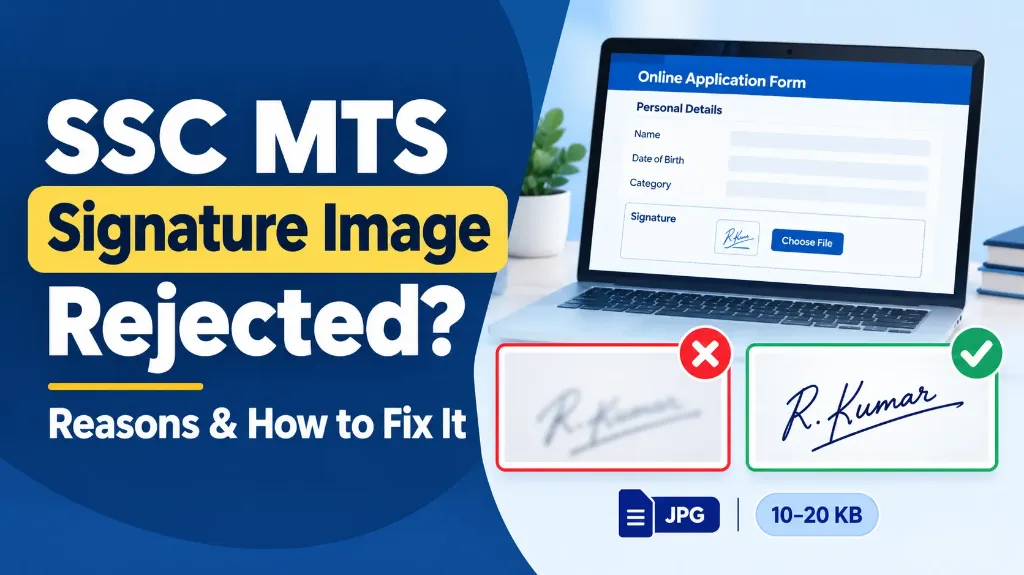
If the SSC MTS signature image rejected message appears while you are filling out your application form, do not panic. In many cases, the problem can be easily fixed by correcting the signature size, improving image clarity, eliminating excess white paper, or saving the file in the required format.
The Staff Selection Commission (SSC) enforces strict automated and manual validation rules for signature images submitted with the SSC Multi-Tasking (Non-Technical) Staff and Havaldar application. A signature that appears fine on your mobile phone gallery may still be rejected if it is deemed miniature, blurred, improperly cropped, or outside the prescribed file-size range.
In this guide, you will learn why the SSC MTS signature image gets rejected, how to correct it step by step, and what to do if the portal continues to show an error.
[!NOTE] Recruitment Reference: This guide is based on verified SSC MTS & Havaldar examination notifications. Always verify the latest official notification and any corrigendum before submitting your form, as requirements can vary slightly between recruitment cycles.
Official SSC MTS Signature Image Requirements
Before fixing your signature, check the official parameters. The SSC MTS notification specifies the following requirements for the uploaded signature image:
| Requirement | Official Specification | What to Check |
|---|---|---|
| File Format | JPEG / JPG only | Do not upload PNG, WebP, or PDF |
| File Size (KB) | 10 KB to 20 KB strictly | Files < 10 KB or > 20 KB are rejected |
| Image Dimensions | Approx. 6.0 cm wide × 2.0 cm high | 140 × 60 pixels at standard resolution |
| Signature Quality | Sharp, high contrast, readable | No camera blur, shadows, or faint ink |
| Alignment | Horizontal | Do not upload vertical or tilted signatures |
| Main Rejection Grounds | Blurred, miniature, or capital letters | Signature must occupy 80%+ of box space |
These specifications are based on official SSC notices. For official reference, review the SSC MTS and Havaldar Examination Notification.
Why Is My SSC MTS Signature Image Rejected?
Identifying the exact reason for rejection prevents you from making random edits that further degrade image quality. Here are the 6 primary causes:
1. Your Signature Is Too Small (“Miniature Signature”)
A miniature signature is one of the most frequent rejection reasons cited by SSC scrutinizers.
This happens when you sign in the middle of a large A4 sheet and capture the whole page with your camera. When uploaded, the portal fits the entire wide image into a small thumbnail box, reducing your actual handwritten signature to an unreadable, tiny spec.
+---------------------------------------+
|  [X] REJECTED: Miniature Signature    |
|                                       |
|               R. Kumar                |  <- Too much empty space
|                                       |
+---------------------------------------+

+-----------------------+
|  [OK] ACCEPTED        |
|   R. Kumar            |  <- Signature fills 80% of box
+-----------------------+
How to Fix It:
- Sign clearly on plain white paper.
- Crop the image closely around the signature strokes.
- Ensure the handwriting occupies at least 80% of the total canvas area.
- Leave only a small margin around the signature so no strokes are clipped.
2. The Signature Image Is Blurred
A blurry or faint signature will fail automated image checks or get flagged during post-exam document verification.
Blur occurs when:
- The phone camera failed to autofocus before snapping the picture.
- Your hand shook during capture.
- The image was compressed repeatedly using lossy tools.
- Dim indoor lighting made the camera use a slow shutter speed.
How to Fix It:
- Sign with a fresh, dark blue or black ink pen.
- Place the paper flat under bright, diffused daylight.
- Rest your elbows on a table and tap the screen to lock focus.
- Avoid over-sharpening filters that create artificial halos. If your scan is dark, follow our guide on how to fix unclear signature images.
3. The File Size Is Outside the Allowed Range (10 KB – 20 KB)
The SSC portal enforces both an upper limit (20 KB) and a lower limit (10 KB):
- If your file is 24 KB, the portal shows File size exceeds 20 KB.
- If your file is 8 KB, the portal shows File size is less than 10 KB.
How to Fix It:
- Check the actual file size on your device (Right-click > Properties on Windows, or File Info on mobile).
- If larger than 20 KB, use our dedicated SSC Signature Resizer Tool to compress it into the 10–20 KB sweet spot.
- If smaller than 10 KB, re-export the image with a higher quality setting or re-scan at higher resolution.
4. You Uploaded the Wrong File Format (PNG / WebP / HEIC)
Many modern smartphones save photos in HEIC or WebP formats, and drawing tools often export transparent PNGs.
The SSC application portal strictly expects a standard baseline JPG or JPEG.
[!WARNING] Simply renaming
signature.pngtosignature.jpgin Windows Explorer or your mobile file manager does not convert the file format. It corrupts the file header and triggers a “Corrupted or invalid image” error.
How to Fix It:
- Open the image in Paint or an image editor and select Save As > JPEG.
- Or run it through our free Signature Resizer Online Free tool, which automatically outputs valid JPGs.
5. The Signature Is Cropped Incorrectly or Stretched
An awkward crop or incorrect aspect ratio distorts the signature:
- Cropping too tightly cuts off the first letter, dot of an “i”, or underline.
- Forcing a tall, square photo into a 6:2 rectangular box without aspect-ratio locking makes the signature look artificially squashed or stretched.
How to Fix It:
- Keep the aspect ratio locked when resizing.
- Crop to a roughly 3:1 horizontal rectangle before adjusting pixel dimensions.
- If you face dimension errors, review Invalid Image Dimensions Error in Exam Form: How to Fix It.
6. The Signature Is in Capital Block Letters
The Staff Selection Commission explicitly warns candidates that signatures written entirely in CAPITAL LETTERS will be rejected.
A signature must represent your genuine, running cursive handwriting. Do not write your name in disconnected uppercase block letters like R A V I K U M A R.
Step-by-Step Guide: How to Fix SSC MTS Signature Error
Follow this verified sequence to prepare a fresh, compliant signature image:
[ Step 1: Sign ] -> [ Step 2: Capture ] -> [ Step 3: Crop ] -> [ Step 4: Resize ] -> [ Step 5: Upload ]
Blue/Black pen Bright light, 90° 80% box coverage 140x60 px, 10-20KB Preview & verify- Create a Fresh Signature: Take a clean, unruled white sheet of paper and sign naturally using a dark blue or black pen.
- Photograph Properly: Hold your mobile phone directly above the paper (90-degree angle). Make sure no shadows fall over the signature. Read our detailed guide on How to Scan Signature Using Mobile for Exam Form.
- Crop Excess Margins: Use your phone’s gallery editor or our online tool to crop away empty borders, keeping the signature centered and horizontal.
- Resize to Exact Limits: Open our SSC Signature Resizer or Signature Resizer for Mobile Phone. Set dimensions to 140 × 60 pixels (approx. 6.0 × 2.0 cm) and choose the 10–20 KB preset.
- Inspect the Output File: Open the downloaded
.jpgfile. Ensure handwriting is legible and file size is around 14–18 KB. - Upload to SSC Portal: Log in to the official Staff Selection Commission website, select the corrected file, and upload.
- Verify the Live Preview: Before clicking final submit, confirm that the thumbnail preview on the portal is crisp, horizontal, and clearly visible.
If the upload button fails to respond, consult Signature Upload Failed in Online Application Forms.
Common SSC MTS Signature Problems & Instant Solutions
| Error or Problem | Root Cause | Immediate Fix |
|---|---|---|
| Signature Rejected | Blurred lines or miniature mark | Crop closer to handwriting and re-scan in bright daylight |
| File Size Error | File is < 10 KB or > 20 KB | Use our SSC Resizer to adjust to 15 KB |
| Invalid Format Error | File is PNG, WebP, or HEIC | Export as standard baseline JPEG/JPG |
| Signature Looks Tiny in Preview | Uncropped A4 paper uploaded | Crop away 90% of white space around signature |
| Signature Looks Stretched | Aspect ratio forced into square | Maintain horizontal rectangular 3:1 ratio |
| Upload Keeps Failing | Session timeout or cached scripts | Open an Incognito window in Chrome and retry |
| Old Image Stills Shows | Browser cached old thumbnail | Press Ctrl + Shift + R to force browser reload |
Can You Change Your Signature After Final Submission?
Whether you can correct your signature after hitting “Final Submit” depends entirely on whether SSC provides an Application Form Correction Window:
- Check the official SSC MTS examination schedule for correction window dates (usually open for 2–3 days after registration closes).
- If the window is active, log in with your registration number and password, pay the prescribed correction fee (typically ₹200 for the first correction), and upload the new signature.
- If no correction window is available, do not submit a second duplicate application under the same Aadhaar/matriculation number, as this can lead to permanent debarment for multi-registration.
- Contact the regional SSC helpdesk for official guidance if your application has critical errors.
Review our in-depth analysis on Government Exam Form Rejected Due to Signature: Common Mistakes for more information.
Related SSC Guides & Resizer Tools
Explore our specialized tools and guides for other Staff Selection Commission exams: