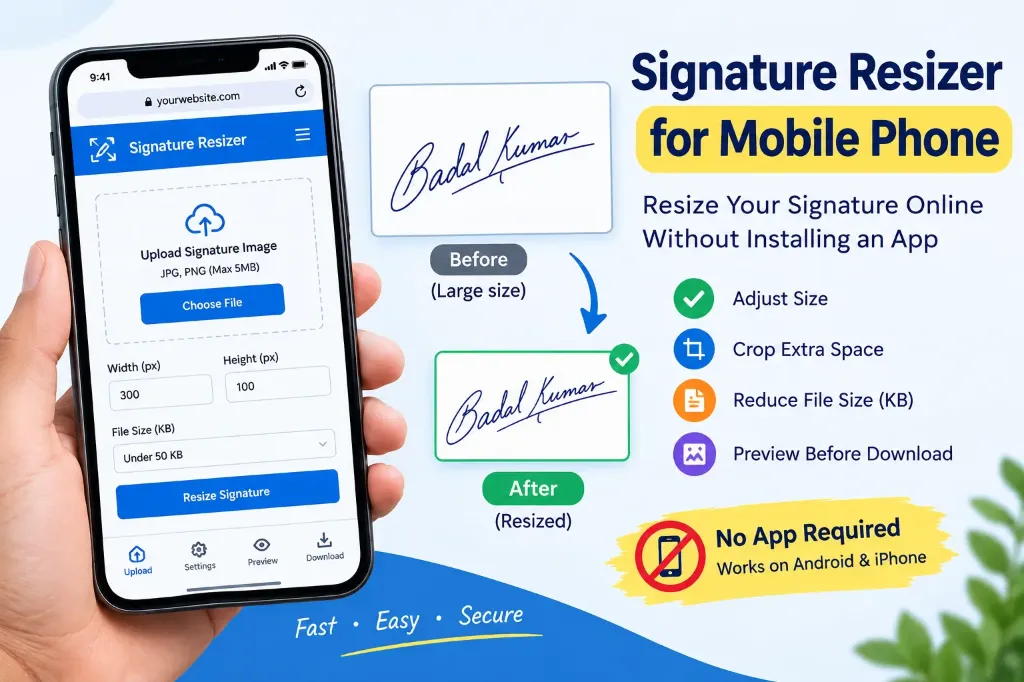
Have you ever tried to upload your signature to a government exam form, scholarship application, or online registration portal, only to discover that the image is too large or does not match the required dimensions?
This problem is quite common, especially when you are completing an application using your smartphone. You may have a clear picture of your signature in your mobile gallery, but the website might require a specific image format, exact pixel width and height, or a strict file size between 10 KB and 20 KB.
The good news is that you do not need a desktop computer, Photoshop, or risky third-party editing apps to fix it. A signature resizer for mobile phone allows you to resize, crop, and compress your signature directly from your smartphone browser in seconds.
In this guide, you will learn how to capture and prepare your signature, resize it online on mobile, download the correct file, and check it before submitting your application. If you haven’t photographed your signature yet, check our companion guide on How to Scan Signature Using Mobile for Exam Form.
What Is a Signature Resizer for Mobile Phone?
A mobile signature resizer is a browser-based utility that lets you adjust an image’s technical properties to satisfy online form requirements.
Depending on the tool, it allows you to:
- Crop extra margins: Remove excess blank paper around the handwriting.
- Adjust pixel dimensions: Set exact canvas width and height (such as 140 × 60 pixels).
- Control file size in KB: Compress the file to fit within thresholds (like 10 KB – 20 KB or under 50 KB).
- Convert format: Export clean, standard JPG/JPEG files without corrupted metadata.
+-------------------------------------------------------+
|            MOBILE SIGNATURE RESIZER WORKFLOW           |
|                                                       |
|   [ Phone Camera ] -> [ Mobile Browser ] -> [ Download ]
|   Take clear photo     Crop & set KB/px     Ready to Upload
+-------------------------------------------------------+
You can use this web tool on:
- Android smartphones using Google Chrome, Samsung Internet, Edge, or Firefox.
- Apple iPhones & iPads using Safari or Chrome.
- Android & iOS tablets with any modern mobile browser.
Because our Signature Resizer Tool runs client-side using JavaScript, your photo is processed directly inside your phone’s memory—no data is uploaded to remote servers.
How to Resize a Signature on Your Mobile Phone (Step-by-Step)
Follow these 8 simple steps to prepare an error-free signature image directly from your phone:
Step 1: Open the Signature Resizer Tool
Open your mobile browser (such as Google Chrome on Android or Safari on iPhone) and visit our free Signature Resizer Online Free page.
The tool interface is fully responsive and optimized for touchscreens. You will see an Upload Signature Image button, dimension controls (Width and Height in pixels), and target file-size options.
[!TIP] Before selecting your file, check the official recruitment notification to confirm the required dimensions (pixels/cm) and file size range (KB).
Step 2: Select Your Signature Image
Tap the Choose File or Upload button on your screen. Your mobile operating system will present you with options:
- Photo Library / Gallery: Choose an existing photo from your saved camera shots.
- Files / Downloads: Select an image stored in your device folders.
- Camera: Take a fresh photo directly.
       [ Mobile File Picker ]
  +--------------------------------+
  |  📷 Camera   |  🖼️ Photo Library
  |  📁 Files    |  🔍 Browse...   |
  +--------------------------------+
If you have not created your signature yet:
- Sign on a clean, unruled white sheet of paper using a dark blue or black pen.
- Place the paper on a flat table near natural window light.
- Hold your phone flat and parallel (90-degree angle) above the paper.
- Avoid casting shadows from your hands or device over the ink strokes.
- Tap your screen to focus, then capture a sharp, unblurred shot.
If your signature photograph looks faint or dark, read our guide on how to fix unclear signature images in application forms.
Step 3: Crop the Extra White Space
A raw mobile photo captures the entire sheet of paper, leaving a tiny signature surrounded by huge blank margins. If you upload this without cropping, the application portal will shrink the whole image, making your handwriting completely illegible.
- In the resizer tool, use the touch-friendly cropping frame.
- Drag the corner handles close to your signature handwriting.
- Leave a neat, balanced white border (around 5% to 10%) on all sides.
- Ensure no stroke, loop, or dot is cut off by the cropping box.
+-----------------------------+      +---------------+
|  [RAW CAMERA PHOTO]         |      | [CROPPED]     |
|                             |      |  Badal Kumar  |
|         Badal Kumar         | ---> +---------------+
|                             |      Close crop with
+-----------------------------+      balanced margin
Step 4: Set the Required Width and Height
Every application form specifies distinct dimension requirements. In the tool’s dimension inputs:
- Enter the Width (px) and Height (px) indicated in your exam guidelines.
- For example, SSC and IBPS generally require 140 × 60 pixels.
- UPSC requires a minimum of 350 × 350 pixels.
Avoid stretching a small image disproportionately. Keep the aspect ratio locked unless the application portal strictly mandates specific rectangular proportions. Distorted, stretched signatures can lead to form rejection. If you run into dimension validation issues, consult our guide on how to fix invalid image dimensions errors.
Step 5: Reduce the Signature File Size in KB
Even if your pixel dimensions are correct, a high-resolution smartphone photo can easily be 2 MB to 5 MB. Government portals will immediately reject files over 20 KB or 50 KB.
- Select your target file size from the dropdown (e.g., Under 20 KB or Under 50 KB).
- Alternatively, adjust the compression slider until the estimated file size matches your portal’s limit.
- Do not over-compress: Avoid dropping file size below 5 KB, as that can make handwriting faint or broken.
For dedicated government job requirements, see our guide on Signature Resizer for Government Job Forms.
Step 6: Preview the Resized Signature
Never download or upload a file blindly. Inspect the generated preview on your mobile screen:
- Sharpness: Are the ink lines distinct, dark, and clear?
- Proportions: Does the signature look natural, without being horizontally squashed or vertically stretched?
- Completeness: Are the starting and ending letters intact?
- Background: Is the paper background clean and free of dark grey tones?
Step 7: Download and Save the Image
Once the preview looks clean and sharp, tap the Download Signature button.
- On Android: The file saves automatically to your
Downloadsfolder as a.jpgimage. - On iPhone (iOS): Safari will prompt you to download or “Save Image” to your Photos app.
- Open your phone’s gallery or file manager to verify that the file opens cleanly and shows the expected KB size.
Step 8: Upload the Image to Your Application Form
Switch back to your exam portal tab in your mobile browser:
- Navigate to the signature upload section.
- Tap “Choose File” and select your newly downloaded resized image.
- Verify that the portal accepts the file and displays the preview without throwing errors.
If the portal displays a failure message, refer to our troubleshooting checklist on Signature Upload Failed in Online Application Forms.
Official Exam Signature Size Specifications
Different recruitment boards enforce unique technical parameters. Here is a quick reference table based on official guidelines:
| Examination Authority | Required Format | File Size (KB) | Recommended Dimensions | Official Link |
|---|---|---|---|---|
| SSC (CGL, CHSL, MTS, GD) | JPG / JPEG | 10 KB – 20 KB | 140 × 60 px (approx. 4.0 × 2.0 cm) | SSC Presets |
| UPSC (Civil Services, NDA, CDS) | JPG / JPEG | 20 KB – 300 KB | 350 × 350 px (Min) to 1000 × 1000 px | UPSC Presets |
| IBPS (PO, Clerk, SO, RRB) | JPG / JPEG | 10 KB – 20 KB | 140 × 60 px | IBPS Presets |
| NTA (NEET, JEE Main) | JPG / JPEG | 4 KB – 30 KB | 100 × 40 px | NTA Preset |
| Railway (RRB NTPC, Group D) | JPG / JPEG | 10 KB – 20 KB | 140 × 60 px | RRB Preset |
For example, the Staff Selection Commission’s official Constable GD examination notification explicitly mandates a JPEG/JPG signature between 10 KB and 20 KB with dimensions of roughly 4.0 cm × 2.0 cm, warning that illegible or miniature signatures will lead to immediate cancellation. You can review the official SSC Constable GD notification for an example of these guidelines.
Common Problems When Resizing on Mobile & Solutions
| Problem | Root Cause | Solution |
|---|---|---|
| Upload button does not respond | Script blocked or memory issue | Refresh the tab, close background apps, or open an Incognito window. |
| Signature looks blurry or pixelated | Original photo had camera shake or was over-compressed | Re-take photo in bright daylight; keep compression within 10–20 KB. |
| File size remains above 20 KB | Camera resolution too high | Lower output dimensions to 140 × 60 px and set compression to high. |
| Signature looks squashed or stretched | Forced non-proportional dimensions | Keep aspect ratio locked and crop paper to a 7:3 horizontal ratio. |
| Downloaded file not visible in gallery | File saved in Downloads folder | Open your Files / My Files app and look in the Download folder. |
| Portal shows “Invalid file format” | Uploaded WebP, HEIC, or renamed PNG | Use our resizer to download a genuine baseline .jpg file. |
Is It Safe to Resize a Signature Online?
A handwritten signature is a sensitive personal identifier used on bank accounts, legal contracts, and official documents. It is completely natural to be concerned about digital security.
When using our Signature Resizer Tool:
- 100% Client-Side Processing: All cropping, resizing, and compression happen entirely within your phone’s browser using HTML5 Canvas and JavaScript.
- Zero Server Uploads: Your signature image is never transmitted, stored, or processed on remote web servers or databases.
- No Account or Permissions Required: You do not need to register, provide an email, or grant invasive app permissions (like contacts or location) to use the tool.
For maximum peace of mind, you can even disconnect your mobile Wi-Fi or mobile data after opening the webpage—the tool will continue to resize and download your signature offline!
Helpful Government Exam Tools & Guides
Ensure all your application documents meet official standards with our related guides: