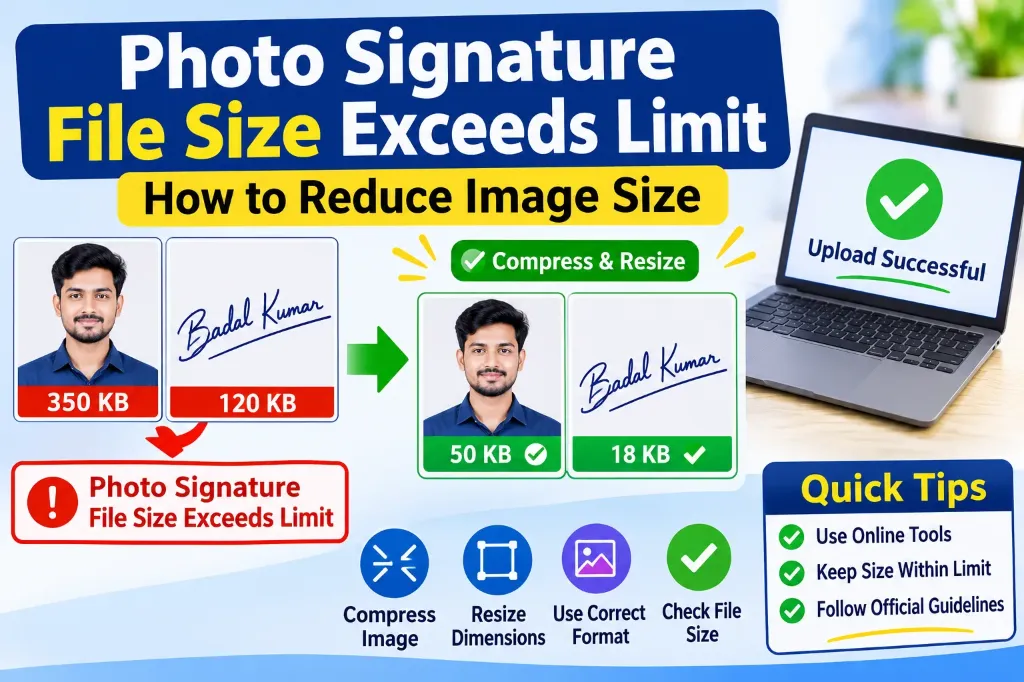
Are you trying to upload your photograph or signature to an online application form but getting the error Photo Signature File Size Exceeds Limit?
This is a common problem when filling out government exam forms, job applications, scholarship portals, and competitive exam registrations. You may have selected the correct image, but the application portal refuses to accept it because the file is larger than the permitted KB or MB limit.
For example, a recruitment portal may allow a photograph of only 20 KB to 50 KB or a signature of 10 KB to 20 KB. If your smartphone photo is 150 KB, 500 KB, or 3 MB, the upload will fail immediately.
The good news is that you do not need to take another photo or sign again. In most cases, you can fix the problem in seconds by compressing the image, adjusting its pixel dimensions, or exporting it in the correct format.
[!NOTE] Reducing file size does not always require shrinking image dimensions. File size (in KB) and pixel dimensions (width × height) are two different technical specifications.
What Does “Photo Signature File Size Exceeds Limit” Mean?
The error means that the image file you are trying to upload contains more digital storage space (measured in Kilobytes or Megabytes) than the maximum threshold set by the portal server.
Every online application website has specific image validation parameters, which usually include:
- Maximum file size limit (e.g., max 50 KB or 100 KB)
- Minimum file size threshold (e.g., min 10 KB or 20 KB)
- Accepted file formats (usually JPG or JPEG)
- Required pixel dimensions (e.g., 200 × 230 px for photos, 140 × 60 px for signatures)
- Readability and aspect ratio standards
Typical Upload Validation Scenario:
┌────────────────────────────────────────────────────────┐
│  Portal Requirement: Signature (10 KB to 20 KB, JPG)   │
├────────────────────────────────────────────────────────┤
│  Your File:   85 KB  ───►  ❌ REJECTED (Size Exceeded) │
│  Your File:    8 KB  ───►  ❌ REJECTED (Below Minimum) │
│  Your File:   16 KB  ───►  ✅ ACCEPTED (Within Range)  │
└────────────────────────────────────────────────────────┘
If an upload fails completely or shows a generic error message, also consult our troubleshooting guide on Signature Upload Failed in Online Application Form.
Why Is Your Photo or Signature File Too Large?
Understanding why your file is oversized makes it easier to prevent the problem in the future:
1. High-Resolution Camera Photos
Modern smartphones capture photos at 12 MP, 48 MP, or even 108 MP. These images contain millions of pixels and rich color data, resulting in file sizes between 2 MB and 10 MB. Online application forms require only a tiny fraction of that data.
2. Excessive Pixel Dimensions
An image straight from a phone camera might be 4000 × 3000 pixels, while an exam portal requires only 200 × 230 pixels for a passport photo or 140 × 60 pixels for a signature. Extra pixels dramatically inflate the file size without adding useful detail on an application card.
3. Unsuitable File Formats (PNG vs. JPEG)
Formats handle compression differently. A lossless PNG file of a signature or photo is often 3 to 5 times larger than a well-compressed JPEG file. If your image is saved as PNG, converting it to JPEG can cut the file size by up to 70% instantly.
4. Uncompressed Raw Scans
Taking a picture or using a flatbed scanner does not automatically compress the image for web usage. Raw scans preserve full color palettes and uncompressed data blocks until an image optimizer processes them.
5. Large Scanned Borders
Scanning a small signature in the center of an entire A4 page captures huge amounts of empty white paper. Cropping away unnecessary whitespace immediately slashes the file size. For phone scanning best practices, see our detailed guide on How to Scan Signature Using Mobile for Exam Form.
How to Reduce Photo or Signature File Size Online
You can easily resize and compress your documents online without installing heavy editing software:
  [1. Upload Image]
         ↓
  [2. Crop Extra Borders]
         ↓
  [3. Set Required Pixels (Width × Height)]
         ↓
  [4. Adjust Compression (Quality 70–85%)]
         ↓
  [5. Export as JPG & Verify File Size]
Step 1: Open an Image Tool
You can use dedicated tools designed specifically for government exam forms:
- Open our free Signature Resizer tool to set both pixel dimensions and exact KB limits simultaneously.
- If you are on a smartphone, use the mobile-optimized Signature Resizer for Mobile Phone.
- You can also use client-side compression tools like Squoosh for general image optimization.
Step 2: Upload Your Photo or Signature
Select the file that triggered the file size error. Make sure you don’t accidentally select your photograph when you intend to compress your signature.
Step 3: Select the Required Format (JPG/JPEG)
Most Indian examination portals (UPSC, SSC, IBPS, State PSCs) mandate JPG or JPEG.
| Format | When to Use |
|---|---|
| JPG / JPEG | Best for exam photos and signatures (universal compatibility, small KB) |
| PNG | Best for graphic logos; rarely accepted in government exam forms |
| WebP | Great web compression, but unsupported on most government recruitment portals |
[!WARNING] Never simply rename a file extension from
photo.pngtophoto.jpg. Manually renaming the file does not convert its internal image structure and will cause a corrupted file error on the portal!
Step 4: Adjust Compression Quality
Lower the compression quality slider gradually (typically between 70% and 85%). This discards invisible digital noise while keeping text, edges, and facial features crisp.
Step 5: Adjust Pixel Dimensions if Needed
If compression alone does not bring the file below the required limit, downscale the pixel dimensions to match portal instructions (e.g., resize a 2000 × 1000 px signature down to 140 × 60 px). If you encounter dimension mismatch errors, read our guide on Invalid Image Dimensions Error in Exam Form.
Step 6: Download and Inspect
Download the optimized image with a clean filename like photo-50kb.jpg or signature-20kb.jpg. Avoid spaces, brackets, and special characters.
Step 7: Check File Properties Before Uploading
- On Windows: Right-click image → Properties → check the Size field.
- On Android/iOS: Open the photo in Gallery → tap the Info (ℹ️) button to verify KB size and pixel dimensions.
How to Target Specific File Sizes: 20 KB, 50 KB, 100 KB
Different exams prescribe different target ranges. Here is how to handle the most common file size limits:
| Target File Size | Document Type | Best Approach |
|---|---|---|
| 10 KB – 20 KB | Exam Signatures (SSC, IBPS, SBI) | Crop tightly, resize to ~140×60 px, use 75–80% JPG quality |
| 20 KB – 50 KB | Passport Photos (SSC, State PSCs) | Resize to 3.5×4.5 cm (~200×230 px), compress to ~35 KB |
| 50 KB – 100 KB | Handwritten Declarations (SBI, IBPS) | Resize to 800×400 px, compress to ~70 KB |
| 100 KB – 200 KB | Scanned ID & Certificates | Scan at 150–200 DPI, convert to grayscale or moderate JPG |
[!TIP] Always aim for the middle of the permitted range. For example, if a signature requirement is 10 KB to 20 KB, aim for 14 KB to 16 KB. Aiming for exactly 20 KB risks failing upload validations due to differences in file size calculation algorithms (1000 vs 1024 bytes per KB).
Photo Size vs. Image Dimensions: Understand the Difference
A frequent reason candidates struggle with form uploads is confusing file size with image dimensions:
┌─────────────────────────────────┬─────────────────────────────────┐
│        FILE SIZE (in KB)        │     IMAGE DIMENSIONS (in px)    │
├─────────────────────────────────┼─────────────────────────────────┤
│ • Measures disk storage space   │ • Measures physical pixel count │
│ • Example: 25 KB, 50 KB, 1 MB   │ • Example: 200×230 px, 140×60 px│
│ • Controlled by compression     │ • Controlled by canvas resizing │
│ • Dictates server upload speed  │ • Dictates aspect ratio & layout│
└─────────────────────────────────┴─────────────────────────────────┘
An image can have small pixel dimensions (e.g., 200 × 200 px) but still be over 100 KB if saved as an uncompressed PNG. Conversely, a large 1200 × 1200 px image can be compressed down to 40 KB, but the portal will still reject it if it validates pixel width and height.
Both must match the official criteria.
Troubleshooting: What If the Image Is Still Rejected?
| Issue / Error Message | Root Cause | Practical Solution |
|---|---|---|
| File size exceeds limit | File is slightly above maximum allowed KB | Increase compression by 5–10% or reduce pixel dimensions slightly |
| File size below minimum | File is overly compressed (e.g., 6 KB when min is 10 KB) | Re-export at 90% quality or keep original aspect ratio |
| Invalid file format | File saved as WEBP, PNG, or double extension (.jpg.png) |
Export as genuine JPEG from Paint or photo editor |
| Incorrect dimensions | Pixel width and height do not match notification specifications | Use Signature Resizer to set exact width and height |
| Image blurry or illegible | Over-compressed or scanned in low light | Re-capture signature with dark black ink in bright daylight; see Signature Image Not Clear in Application Form |
| Signature rejected after submit | Typed initials or mismatched style | Review Government Exam Form Rejected Due to Signature |
Important Pre-Upload Checklist
Before attempting your form upload, verify each of these points:
- Checked the official recruitment notification for exact KB limits (min and max).
- Confirmed the required pixel width and height (aspect ratio preserved).
- File is saved in genuine JPG / JPEG format.
- Filename contains only simple alphanumeric characters (e.g.,
candidate-photo.jpg). - Photo is sharp, upright, with plain light/white background and neutral expression.
- Signature is written with a black pen on clean white unruled paper.
- File size sits comfortably inside the allowed KB bracket (not on the boundary).
- Verified the on-screen preview thumbnail before final form submission.
Related Guides & Essential Resources
- Invalid Image Dimensions Error in Exam Form: How to Fix It
- Signature Upload Failed in Online Application Form: Causes and Fixes
- Signature Image Not Clear in Application Form: Troubleshooting Guide
- How to Scan Signature Using Mobile for Exam Form
- Signature Resizer for Mobile Phone: Free Online Tool
- Government Exam Form Rejected Due to Signature: Avoid Disqualification
- Documents Required for Government Job Online Application
- Online Government Exam Form Complete Guide