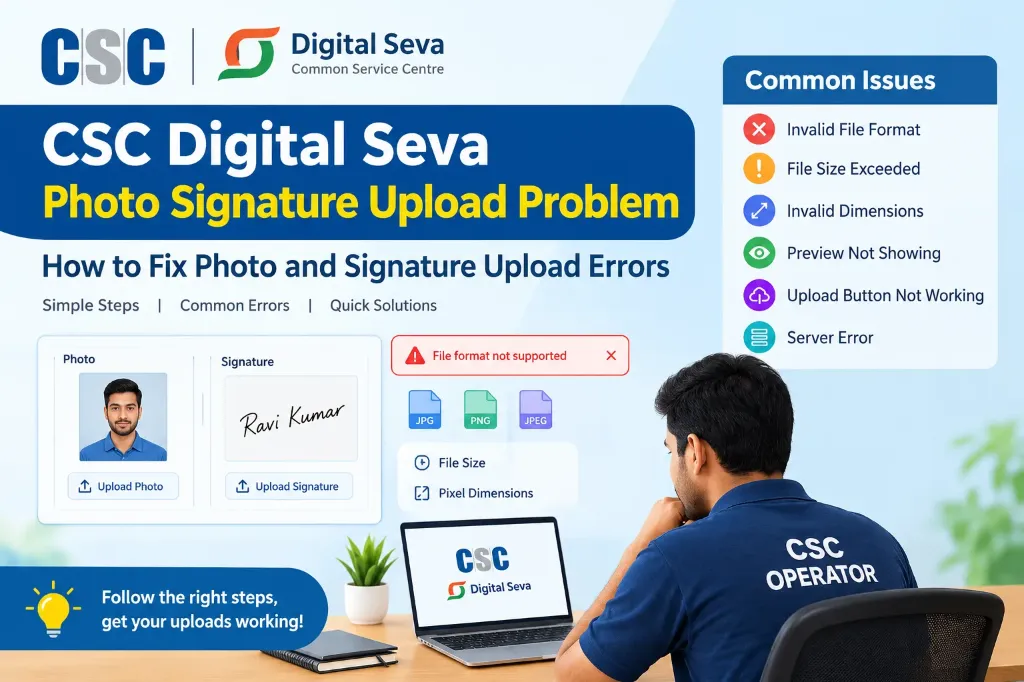
The CSC Digital Seva Photo Signature Upload Problem can interrupt an application workflow and delay service delivery at a Common Service Centre (CSC). A photograph or signature may fail to upload even when the image appears perfectly clear on your computer screen. Sometimes the portal displays an explicit error message such as Invalid File Format, File Size Exceeded, Invalid Dimensions, or Upload Failed. In other instances, the chosen file simply fails to load into the preview window.
For a CSC Village Level Entrepreneur (VLE) or kiosk operator, the first step is to pinpoint whether the obstacle stems from the image file itself, the web browser, your local internet connection, or temporary server downtime.
This guide provides practical troubleshooting methods for common photo and signature upload errors. Because CSC Digital Seva provides access to hundreds of central and state services (such as PAN cards, passport services, welfare schemes, and job applications), the permitted file formats, pixel dimensions, and size limits vary by application. Always follow the instructions provided by the specific service rather than assuming one standard set of image parameters applies everywhere. For a comprehensive overview of client handling, also explore our guide on CSC VLE Online Form Filling Services.
Why Does the CSC Digital Seva Photo Signature Upload Problem Occur?
Photo and signature upload failures typically stem from technical mismatches during the portal’s client-side or server-side validation. Diagnosing the root cause before altering the file saves time and avoids degrading image quality through repeated compression.
Common reasons include:
- Unsupported image format: The portal expects JPG/JPEG, but the operator uploads PNG, WebP, BMP, or HEIC.
- File size mismatch: The file size exceeds the permitted maximum limit (e.g., > 50 KB) or falls below a mandatory minimum (e.g., < 10 KB).
- Incorrect pixel dimensions: The photo or signature width and height do not match the required pixel ratio.
- Corrupted image file: The file cannot be read properly due to an incomplete download or improper format renaming.
- Extension mismatch: Renaming a file from
photo.pngtophoto.jpgdoes not convert the internal image format. - Browser or cache conflicts: Outdated browser versions, accumulated cookies, or conflicting browser extensions block form scripts.
- Temporary portal downtime: High traffic or scheduled server maintenance on the Digital Seva gateway.
- Pending submission step: The application requires clicking a secondary “Confirm” or “Crop” button after file selection.
Use the step-by-step troubleshooting solutions below to resolve your specific error.
1. Check the Official Photo and Signature Requirements
Before resizing or converting any image, confirm the exact technical instructions for the specific service you are currently processing.
CSC Digital Seva connects users to diverse government schemes, banking services, and educational portals. Requirements for one department rarely match another:
- Open the relevant service through the official CSC Digital Seva Portal.
- Locate the document upload section and read the published image guidelines.
- Check the accepted file extensions (e.g.,
.jpg,.jpeg). - Note the exact minimum and maximum file size allowed in Kilobytes (KB).
- Check the required width and height in pixels (px) or centimetres (cm).
- Review additional styling instructions, such as plain white or light blue background, signature pen color (black or blue), and orientation.
[!IMPORTANT] Do not assume that every CSC service requires a photo under 50 KB and a signature under 20 KB. While common, some services mandate exact dimensions (like 213 × 213 px for UTI PAN) or specific DPI settings. Check our dedicated Signature Resize for CSC VLE Guide for common service presets.
2. Fix the “Invalid File Format” Error
If the portal displays Invalid File Format, Unsupported File Type, or Please upload a valid image, inspect the actual file encoding.
Most government portals accept standard Baseline JPEG or JPG images, while some newer portals accept PNG. However, mobile cameras often save photos in modern formats like HEIC (on iPhones) or WebP, which government gateways reject.
[ Customer Camera Photo ] -> Saved as HEIC / WebP
            |
            v
   [ Portal Validation ] -> REJECTED: "Invalid File Format"
            |
            v  (Solution: Export as clean baseline JPG)
   [ Standard .JPG File ] -> ACCEPTED
How to Fix the File Format in Windows:
- Locate the original photo or signature on your computer.
- Right-click the file and select Open with > Paint.
- Click the File menu and choose Save as > JPEG picture.
- Save the image with a new, simple filename (e.g.,
applicant_photo.jpg). - Upload this freshly converted file to the portal.
[!WARNING] Simply editing the file extension in Windows Explorer from
photo.pngtophoto.jpgdoes not change the internal image data. It causes file header corruption, which triggers immediate upload errors. Always use an image editor or converter to export the file.
3. Reduce or Adjust the Photo and Signature File Size
A File Size Exceeded or File Too Large alert indicates that the image file size is greater than the portal’s upper threshold. Conversely, a File Too Small error indicates the file was over-compressed.
First, understand the core terminology:
| Term | What It Measures | Example |
|---|---|---|
| Kilobytes (KB) / Megabytes (MB) | File storage size on your hard disk | 20 KB, 50 KB, 2 MB |
| Pixels (px) | Digital width and height of the image canvas | 200 × 230 px, 140 × 60 px |
| DPI (Dots Per Inch) | Print resolution metadata | 200 DPI, 300 DPI |
These measurements are independent. Compressing an image from 100 KB down to 18 KB does not change its pixel dimensions unless you explicitly resize the canvas.
Steps to Adjust File Size Safely:
- Use our free online Signature Resizer Tool directly in your browser.
- Set the maximum file size slider to match your portal’s limit (e.g., 20 KB or 50 KB).
- Preview the output to verify that the applicant’s facial features or signature strokes remain sharp and legible.
- If an image looks faint or degraded after shrinking, consult our guide on fixing unclear signature images in application forms.
4. Correct Invalid Photo or Signature Dimensions
Often, an operator manages to compress a file below 50 KB, yet the portal still throws an error: Invalid Image Dimensions or Image width and height do not match specifications.
This happens because the portal’s validation script checks the image resolution in pixels. If a portal requires a 3.5 cm × 4.5 cm portrait photo (approximately 132 × 170 pixels at 96 DPI), an uploaded square image (e.g., 500 × 500 px) will be rejected.
How to Check Image Dimensions in Windows:
- Right-click the image file on your desktop or folder.
- Select Properties and open the Details tab.
- Scroll down to the Image section to view the Dimensions (e.g.,
Width: 413 pixels,Height: 531 pixels). - Compare these values with the portal’s specifications.
       [ Aspect Ratio Comparison ]
+-------------------+      +-------------------+
|     3.5 cm        |      |     3.5 cm        |
|  +-------------+  |      |  +-------------+  |
|  |             |  |      |  |             |  |
|  |   Photo     |  | 4.5  |  |  Signature  |  | 1.5
|  |  (Portrait) |  | cm   |  +-------------+  | cm
|  |             |  |      |                   |
|  +-------------+  |      +-------------------+
+-------------------+
If dimensions do not match, adjust them using our Invalid Image Dimensions Troubleshooting Guide or enter the exact required width and height in our resizer tool.
5. Fix Signature Upload Errors
Signatures present distinct challenges because thin pen strokes can blur or vanish when downscaled.
To ensure your signature uploads smoothly:
- Crop extra margins: Do not upload an entire A4 page with a small signature in the center. Crop closely around the handwriting, leaving a small white border.
- Maintain horizontal orientation: Ensure the signature is right-side up and horizontal. Never upload a vertically oriented signature.
- Avoid stretching: Do not uncheck aspect-ratio locking without verifying that the signature doesn’t look artificially flattened or elongated.
- Clean white background: Ensure high contrast between the ink and the paper. If the mobile scan has grey shadows, review our guide on how to scan signature using mobile for exam forms.
- Authenticity: Never alter, trace, or re-sign on behalf of a customer. Always use the customer’s genuine signature.
If the upload continues to fail, check our detailed troubleshooting resource on Signature Upload Failed in Online Application Forms.
6. What to Do When the Upload Button Is Not Working
If the image matches all published parameters but clicking the Upload or Submit button yields no response, the issue is usually client-side or network-related:
- Verify Internet Stability: A temporary ping drop or packet loss can prevent the multipart form data from reaching the server.
- Wait for Page Scripts to Load: On heavy portals, JavaScript libraries take a few seconds to initialize. Allow the page to load completely before clicking upload.
- Switch Browsers: Some government portals are optimized specifically for Google Chrome or Mozilla Firefox. If you are using Edge or an older browser, switch to Chrome.
- Disable Conflicting Extensions: Ad-blockers, popup blockers, or translation extensions can intercept file upload events. Disable them for government portals.
- Clear Browser Cache: Open Chrome Settings, clear cached images and files, restart the browser, and log in again.
- Incognito / Private Mode: Try uploading within an Incognito window to bypass cached scripts.
7. Photo Is Selected but Preview Does Not Appear
When an operator selects an image from their disk and the preview box remains blank or grey:
- Inspect File Integrity: Open the image in your Windows default photo viewer. If Windows displays “We can’t open this file”, the image is corrupted. Re-scan or re-download the original file.
- Simplify the Filename: Rename the file to something simple without special characters or spaces. Use
photo.jpgorsignature.jpginstead ofWhatsApp Image 2026-10-27 at 10.30.15 (1).jpeg. - Local Storage Access: Ensure the image is stored on your local hard disk (
C:\orD:\drive) rather than on an unmapped network drive or cloud sync folder (OneDrive/Google Drive), which can cause browser read timeouts. - Check for Confirmation Buttons: Some portals require clicking a separate “Crop” or “Load Preview” button before the final upload activates.
8. Resolve CSC Digital Seva Server Errors
If your image strictly satisfies all format, dimension, and size requirements, and your browser is functioning normally, the failure may be caused by a temporary gateway error (HTTP 500, 502, or 503):
- Check Portal Status: Determine whether the issue is isolated to a single service (e.g., E-District or PM-Kisan) or affects the entire Digital Seva gateway.
- Avoid Rapid Resubmissions: Repeatedly hitting upload or refreshing during a server hiccup can lock the applicant’s session or generate duplicate pending requests.
- Note Error Codes: Record any specific error code or transaction ID displayed on the screen for support reference.
- Retry During Off-Peak Hours: Government servers experience heavy traffic between 11:00 AM and 4:00 PM. Attempting submissions early in the morning or later in the evening often yields instant success.
Quick Troubleshooting Matrix for CSC Operators
| Error Message or Symptom | Primary Cause | Immediate Fix |
|---|---|---|
| Invalid File Format | File is PNG, WebP, HEIC, or improperly renamed | Open in Paint and Save As JPEG |
| File Size Exceeded | Image exceeds maximum KB limit (e.g., > 50 KB) | Use Signature Resizer to compress file size |
| File Size Too Small | Image is over-compressed below minimum limit | Re-export with higher quality settings |
| Invalid Dimensions | Pixel width and height do not match portal rules | Adjust exact width × height pixels in image editor |
| Signature Is Blurry | Excessive compression or poorly lit camera shot | Re-scan in bright daylight and crop margins |
| Preview Box Remains Blank | Corrupted file or complex filename | Rename file to photo.jpg; save locally on Desktop |
| Upload Button Not Responding | JavaScript blocked, browser cache, or slow net | Switch to Google Chrome incognito mode |
| Server Error (500 / 502 / 503) | Portal gateway overload or scheduled maintenance | Wait 15–30 minutes or retry during off-peak hours |
How to Contact Official CSC Support
If standard troubleshooting fails to resolve the issue, contact official CSC support rather than repeatedly modifying valid customer documents:
- Log in to the official CSC Digital Seva Portal.
- Navigate to the Helpdesk / Support section.
- Submit a ticket under the appropriate category (e.g., Service Portal > Technical Issue).
- Have the following details ready:
- Name of the affected service (e.g., PAN Card UTI, PM Kisan, Passport Seva).
- Exact error text and screenshot of the error modal.
- File details (exact dimensions, file size in KB, and format).
- Time of the failed transaction.
[!CAUTION] Data Security Best Practice: Never share your CSC VLE password, OTP, or remote desktop access with unverified contacts on social media. Always protect customer identity cards, photos, and signatures in compliance with data privacy regulations.
Related Guides & Examination Presets
Explore our dedicated tools and presets to streamline your daily CSC operations: