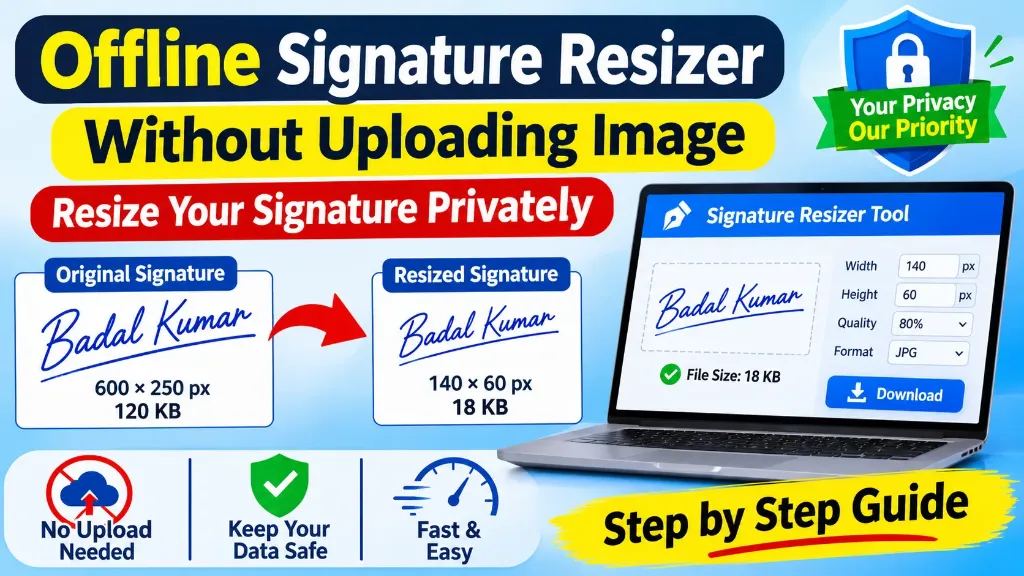
A signature is more than just an image. It is a personal mark that is frequently used for government job applications, banking forms, educational admissions, and other official documents.
When you need to resize a signature for an online application, uploading it to an unknown website can create privacy concerns. Many users prefer an offline signature resizer without uploading image files to an external server.
But is it possible to resize and compress a signature without sharing it online?
Yes. Image processing can be performed directly inside a web browser using technologies such as JavaScript and the HTML Canvas API (which powers our free online signature resizer to work client-side). However, not every online signature resizer works this way. The website must be specifically developed to process the selected image locally instead of sending it to a server.
In this guide, you will learn how local signature resizing works, how to resize a signature privately, what to check before using an image resizer, and how to avoid common privacy mistakes.
What Is an Offline Signature Resizer Without Uploading an Image?
An offline signature resizer without uploading an image is a tool that allows users to change the dimensions and file size of a signature without transferring the actual image to an external processing server.
In a browser-based local processing tool, the image is selected from your device and processed using your browser.
For example, suppose you have scanned your signature and need to prepare it for a government examination application.
The application may require:
- Width: 140 pixels
- Height: 60 pixels
- File format: JPG
- Maximum file size: 20 KB
A suitable local signature resizer can help you prepare an image that meets these requirements without uploading the original signature to a remote image-processing server.
However, always check the specific application guidelines because signature requirements differ between examination authorities.
Why Should You Resize Your Signature Without Uploading It?
Your signature is sensitive personal information. It may be used as part of an identity verification process, so handling it carefully is important.
Here are some reasons why local signature processing can be useful.
1. Better Control Over Personal Information
When an image is processed entirely inside your browser, the original signature does not need to be sent to an external processing server.
This reduces the number of parties that handle your personal image.
For people preparing government job applications, this can provide an additional layer of privacy.
2. Avoid Unnecessary File Sharing
Some image compression websites require users to upload files before processing them.
With a properly implemented local image resizer, you can select your signature, adjust its dimensions, and save the result directly to your device.
This removes the need to send the actual image to a remote image-processing service.
3. Convenient Image Processing
Browser-based image tools can make routine editing easier.
You may be able to:
- Upload or select a signature from your device.
- Enter custom width and height.
- Adjust image quality.
- Reduce file size in KB.
- Preview the resized signature.
- Download the final image.
These operations can be performed locally when the tool is designed for browser-side processing.
4. Useful for Government Application Documents
Government applications sometimes require candidates to upload a signature within a specific file-size range and pixel dimensions (see our detailed guide on signature resizers for government job forms).
A local signature resizer can help prepare the required image while reducing unnecessary exposure of personal files.
How Does Browser-Based Signature Resizing Work Without Uploading?
You do not need a complicated desktop application to resize an image locally. Modern web browsers support several technologies that make local image processing possible.
Three important technologies are the File API, Canvas API, and Blob API.
1. File API
The File API allows a website to access files that users explicitly select from their devices.
For example, when you click Select Signature and choose an image, the browser provides access to the selected file.
The image can then be read by JavaScript for further processing.
Importantly, selecting a file does not automatically mean that it has been uploaded to a server.
Read more about the JavaScript File API on MDN.
2. Canvas API
The Canvas API allows JavaScript to draw and manipulate images inside a browser.
A developer can use it to change image dimensions, crop unnecessary areas, and prepare a resized version of a signature.
For example:
- Original signature: 600 × 250 pixels
- Required signature: 140 × 60 pixels
The image can be drawn onto a canvas with the required dimensions and exported in a suitable format.
Learn more about the HTML Canvas API.
3. Blob API and Image Export
After processing the image, JavaScript can generate a new image file using the HTML Canvas toBlob method.
The resulting file can be downloaded to the user’s device.
The browser supports image export formats such as PNG and, in many browsers, JPEG.
You can read the official MDN documentation for Canvas toBlob.
These browser technologies make local image processing possible. However, using these APIs alone does not guarantee privacy. The developer must also ensure that the selected image is not sent through a network request.
How to Resize a Signature Without Uploading It
If you are using a tool that supports browser-local processing, the following steps can help you prepare your signature.
Step 1: Select Your Signature Image
Start by scanning your original signature (check how to scan a signature using a mobile phone) or selecting an existing image from your computer or mobile device.
For better results:
- Use a clean white background.
- Keep the complete signature visible.
- Avoid shadows and unnecessary marks.
- Use a clear, readable image.
- Save the original file separately.
A good-quality original image makes resizing easier.
Step 2: Open a Local Processing Signature Resizer
Choose a signature resizer that clearly explains how it handles uploaded or selected files.
Look for information about:
- Browser-side image processing.
- Whether image files are transferred to a server.
- Privacy policy and data handling.
- Available image formats.
- Custom width and height settings.
Do not assume that a tool is private simply because it has a lock icon or uses an HTTPS connection.
HTTPS protects data while it travels between your browser and a website. It does not mean that the website never receives your image.
Step 3: Enter Required Signature Dimensions
Government examination portals usually provide their own signature dimensions, such as the standard 140x60 pixel signature for SSC exams or UPSC signature dimensions.
For example:
| Setting | Example Value |
|---|---|
| Width | 140 pixels |
| Height | 60 pixels |
| Format | JPG |
| Maximum file size | 20 KB |
Enter the exact dimensions required by your application.
The values in this table are illustrative, not universal government exam requirements.
Step 4: Adjust the Image File Size
After resizing, check the signature’s file size to prevent errors where the photo signature file size exceeds the limit.
If the resulting image is larger than the permitted limit, adjust the compression quality.
For example:
- Original size: 150 KB
- Resized image: 45 KB
- Compressed image: 18 KB
These numbers are only an example of how compression can reduce file size.
Do not reduce image quality excessively. Your signature should remain clear and readable.
Step 5: Preview the Final Signature
Before downloading, check the preview carefully.
Make sure:
- The entire signature is visible.
- The image is not stretched.
- The handwriting is readable.
- The background is clean.
- The dimensions are correct.
A signature that meets the file-size requirement but becomes unreadable is not a good result.
Step 6: Download the Resized Image
Save the processed signature to your device.
Choose an easily identifiable filename, such as:
government-exam-signature.jpg
After downloading, check the image properties to verify its dimensions and file size.
You can now use it in the relevant application form, provided it follows the official upload instructions.
Offline Processing vs Online Processing: What Is the Difference?
Not every image resizer handles files in the same way.
Understanding the difference can help you choose a suitable tool.
| Feature | Browser-Local Processing | Server-Side Processing |
|---|---|---|
| Image processing | Inside the browser | On a remote server |
| Image transfer | Not required for processing | Usually required |
| Internet connection | May be needed to load the website | Usually needed |
| Privacy | Reduces image-sharing risks | Depends on server security and data policies |
| Download | Directly from browser processing | Usually after server processing |
| File handling | Browser and device | Website server and device |
A browser-local tool can process an image without uploading it to a remote server. However, this does not automatically mean the entire website works without an internet connection.
Is Browser-Local Processing the Same as Completely Offline Processing?
No. These two terms are often confused.
Browser-local processing means the actual image editing takes place inside your browser without sending the selected image to an external processing server.
Completely offline processing means the tool can continue working even when your device has no internet connection.
For example, a browser-based signature resizer may need an internet connection to load its HTML, CSS, and JavaScript files for the first time. After loading, it may process signatures locally.
A website can also be developed as a Progressive Web App with service workers that cache important resources for offline use.
MDN explains how service workers can store website resources in the browser and provide offline functionality.
Read more: MDN – Using Service Workers.
Therefore, check whether a tool offers browser-local processing, full offline functionality, or both.
How to Check Whether a Signature Resizer Uploads Your Image
Privacy claims should be verifiable. You should not depend only on a website’s marketing statements.
If you are comfortable with basic browser tools, you can perform a preliminary network check.
Follow these steps on Google Chrome:
- Open the signature resizing website.
- Press F12 to open Developer Tools.
- Select the Network tab.
- Clear the existing network activity.
- Choose a test signature image.
- Resize and download the image.
- Look for new Fetch or XHR requests.
- Inspect relevant request details and payloads for image data.
If you find a request sending the selected image to a remote server, the tool is not processing that image exclusively locally.
However, the absence of an obvious upload request is not a complete security audit. Image data could be transferred through other network mechanisms, so deeper inspection may be needed.
For ordinary users, a clear privacy policy and confirmation from the tool developer are also useful.
Common Mistakes to Avoid When Resizing Signatures
Even when you use a privacy-focused tool, certain mistakes can affect the final output.
1. Reducing the image quality too much
Excessive compression can make handwriting unclear. If your resulting file looks blurry, consult our guide on signature image not clear in application form for fixes.
Solution: Use moderate compression and check the preview.
2. Using incorrect dimensions
A signature may be clear but still get rejected because its pixel dimensions do not match the application requirements.
Solution: Check the official notification before resizing.
3. Confusing KB with pixels
File size and image dimensions are different measurements.
Solution: Verify both separately.
4. Trusting every website’s privacy claim
A website saying No Upload does not automatically prove that image data remains on the device.
Solution: Review the privacy policy and verify the processing method where possible.
5. Deleting the original signature too early
You may need the original image again if the resized version becomes blurred.
Solution: Keep a secure copy of the original until the application process is complete.