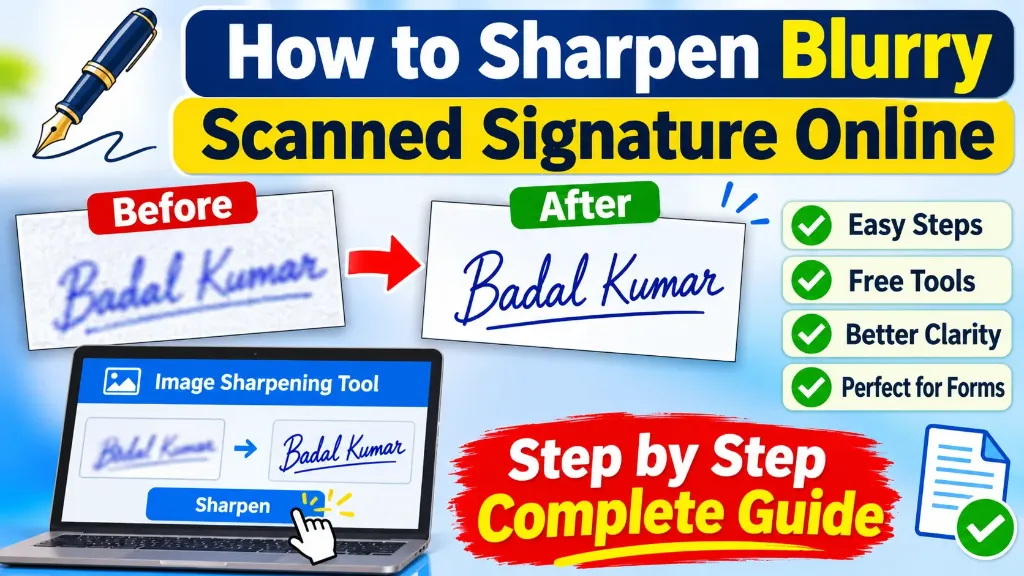
A blurry scanned signature can create problems when uploading documents for government exams, scholarship applications, job applications or other online forms. Even when the original signature is clear, a poor-quality scanner, mobile camera or incorrect image settings can make the digital copy difficult to read.
The good news is that you can often improve a slightly blurry scanned signature using an online image sharpening tool. You do not always need professional photo editing software.
However, there is one important thing to understand: Sharpening can improve the appearance of existing details, but it cannot always recover information lost because of severe blur.
In this guide, you will learn how to sharpen a blurry scanned signature online, improve its contrast, reduce unnecessary background noise and save a clearer image for uploading.
1. Why Does a Scanned Signature Become Blurry?
Before fixing a blurry signature, it is useful to understand why the problem occurs.
A signature is made up of small handwritten strokes. When these strokes are not captured properly, the final digital image may look unclear.
Here are some common reasons:
Low-Quality Scanner
An old or low-quality scanner may not capture thin signature lines properly. This can make the final image look soft or pixelated.
Incorrect Scanning Settings
Scanning at a very low resolution can remove small details from the signature. This is especially noticeable when the signature contains thin handwriting.
Camera Movement
When a signature is photographed using a mobile phone, even a small movement can create motion blur.
Poor Lighting
Uneven lighting can make some parts of the signature darker and other parts difficult to see.
Excessive Image Compression
Sometimes, a signature looks clear before compression but becomes blurry after reducing its file size. This usually happens when the image is compressed too much.
Incorrect Image Resizing
Increasing or decreasing image dimensions several times can affect the quality of the signature.
Understanding the original problem helps you choose the right method instead of applying unnecessary sharpening.
2. How to Sharpen Blurry Scanned Signature Online
Using an online image sharpening tool is one of the easiest ways to improve a slightly blurry signature.
You generally need an image file, an internet connection and a browser.
Follow these steps:
Step 1: Prepare Your Scanned Signature
First, locate the original scanned signature on your computer or mobile device.
The image should preferably be available in JPG, JPEG or PNG format, depending on the tool you plan to use.
Before uploading, check the following:
- The complete signature is visible.
- The image is not heavily blurred.
- The signature has not been cropped accidentally.
- There is enough space around the handwriting.
- The original image is saved separately.
Always keep an unchanged copy of the original signature. This allows you to start again if an editing attempt reduces the image quality.
Step 2: Open an Online Image Sharpening Tool
Open a reliable online image sharpening tool in your browser.
Look for a tool that provides options such as:
- Image sharpening
- Sharpness adjustment
- Brightness control
- Contrast adjustment
- Image preview
- Download or save option
Some tools provide a simple Sharpen button, while others offer adjustable settings.
Choose a tool that allows you to preview the result before downloading.
Privacy tip: A signature is personal information. Before uploading it to an online service, read its privacy policy and check how uploaded files are stored and deleted. For sensitive documents, an offline image editor is a safer option.
Step 3: Upload the Blurry Signature
Click the Upload Image or Choose File option.
Select your scanned signature from your device.
Wait for the image to load completely.
Before making any changes, check whether the uploaded image is the correct one.
If the tool displays a preview, zoom in to examine the handwriting.
Step 4: Adjust the Sharpness Level
Find the Sharpness or Sharpen option.
Increase the sharpness gradually.
Do not immediately select the highest available setting.
A small adjustment may be enough to improve the edges of handwritten strokes.
Pay attention to these details:
- The signature lines should look more defined.
- Thin strokes should remain visible.
- The handwriting should not look artificially thick.
- Background noise should not become more noticeable.
- The edges should not develop unwanted white or dark outlines.
Compare the original and sharpened versions whenever the tool provides a comparison option.
Step 5: Improve Brightness and Contrast
If the signature still looks unclear, brightness and contrast adjustments may help.
- Brightness: This controls how light or dark the image appears.
- Contrast: This controls the difference between lighter and darker areas.
For example, if a black signature appears faint on a gray background, a small contrast adjustment may help make the handwriting easier to see.
Be careful not to increase contrast too much. Excessive contrast can remove faint portions of the signature.
Step 6: Preview the Improved Signature
Before downloading, carefully inspect the final image.
Check the signature at normal viewing size and at 100 percent zoom.
Look for missing strokes, broken lines, unwanted shadows and artificial edges.
If the sharpened image looks worse than the original, reduce the sharpening level or return to the original file.
Step 7: Download the Sharpened Image
Once you are satisfied with the result, click Download or Save Image.
Save the edited image in a suitable location on your device.
If the signature is intended for an online application, check the portal’s required file format, dimensions and file size before uploading it.
Remember that sharpening and resizing are two separate processes. An image can be sharp but still exceed the maximum upload size.
3. How to Make a Scanned Signature Clearer Without Losing Quality
Sharpening alone may not always produce the best result. Sometimes, a combination of simple image adjustments works better.
Here are a few useful techniques:
Use a Clean White Background
If the signature is on a gray or uneven background, carefully adjusting brightness and contrast can help improve readability.
Avoid removing any part of the actual handwriting.
Convert the Image to Grayscale
If the original image contains unwanted colour variations, grayscale conversion may make the signature easier to examine.
However, keep the original colour image as well, especially when the application authority has specific requirements.
Crop Unnecessary Areas
Remove extra blank space around the signature.
A properly cropped image makes it easier to check the handwriting and prepare the required dimensions.
Do not crop too closely. The complete beginning and ending strokes must remain visible.
Avoid Repeated Compression
Try to edit the original image rather than repeatedly editing an already compressed copy.
Each unnecessary saving or resizing step can reduce image quality, depending on the format and settings used.
Use a Better Original Scan When Possible
If the original paper signature is available, scanning it again is often the best solution.
As a practical starting point, use a scanner setting of around 300 DPI or higher when suitable. The exact setting depends on the original, the scanner and the requirements of the final application.
For reference, Library and Archives Canada digitization guidelines recommend 300 to 600 PPI for textual documents.
4. Can You Fix a Severely Blurry Signature Online?
This is an important question because many image enhancement tools advertise impressive sharpening results.
The reality is that not every blurry image can be repaired.
Image sharpening works by increasing contrast around existing edges. It can make some details appear more defined, but it does not recreate all the original information.
Consider these situations:
| Signature Condition | Can Sharpening Help? | Recommended Action |
|---|---|---|
| Slightly blurry signature | Usually yes | Apply gentle sharpening |
| Faint signature | Sometimes | Adjust brightness and contrast carefully |
| Low-resolution signature | Limited improvement | Try using a better original scan |
| Motion-blurred signature | Often limited | Photograph or scan again |
| Severely out-of-focus signature | Usually very limited | Create a new scan |
| Missing handwriting strokes | Cannot reliably restore them | Ask the applicant to sign again if needed |
| Pixelated signature | Limited improvement | Use a higher-quality original image |
Why Severe Blur Cannot Always Be Fixed
Imagine that a signature was photographed while the camera was moving.
The original handwriting strokes may have been spread across several pixels. The exact shape and position of those strokes may no longer be available in the digital image.
A sharpening tool can increase edge contrast, but it cannot reliably determine what the missing handwriting looked like.
Some AI-based image enhancers may generate a visually smoother result. However, generated details may not accurately represent the original signature.
For official applications, never rely on generated or artificially reconstructed handwriting as a replacement for the applicant’s actual signature.
If the original is too blurry, ask the applicant to provide a fresh signature and scan it again.
5. Common Mistakes to Avoid While Sharpening a Signature
While using an online signature sharpening tool, users sometimes make mistakes that reduce image quality.
Avoid these problems:
| Common Mistake | Why It Is a Problem | Better Approach |
|---|---|---|
| Setting sharpness to maximum | Creates rough and unnatural edges | Increase gradually |
| Excessive contrast | Removes faint signature strokes | Use small adjustments |
| Repeated resizing | Can reduce image quality | Start with the original |
| Cropping too closely | May cut off handwriting | Keep the complete signature |
| Using an unknown online website | Can expose sensitive information | Check privacy and security |
| Downloading without previewing | Errors may go unnoticed | Inspect before saving |
| Using AI to recreate strokes | May change the actual signature | Use genuine original handwriting |
| Ignoring upload requirements | The portal may reject the image | Check size and format separately |
These simple precautions can help you get a more readable signature without unnecessarily changing its appearance.
6. What to Do If the Sharpened Signature Still Looks Blurry
Sometimes, an online tool does not produce a satisfactory result.
Instead of repeatedly applying stronger sharpening, try the following steps:
- Check the original file: Open the original image and compare it with the edited version. Confirm whether the blur was already present before editing.
- Scan the signature again: If you have the original paper, use a scanner instead of taking a photograph.
- Improve the lighting: For a mobile scan, use even lighting and avoid shadows.
- Keep the camera steady: Place the paper on a flat surface and hold the phone directly above it.
- Use a suitable scanning resolution: Capture enough detail to preserve thin handwriting strokes.
- Avoid aggressive compression: First prepare a clear image. Reduce its file size only after checking the sharpness.
- Check the application requirements: Some application portals may display a low-resolution preview even when the uploaded file is clearer. Check the downloaded or saved image separately.
If the signature remains unreadable, getting a fresh original signature is usually better than trying to force an unclear image to look sharp.
7. How to Save a Sharpened Signature for Online Form Upload
After improving the signature, you may need to prepare it for a government exam, scholarship or job application.
Before uploading, check the following details:
| Requirement | What You Should Check |
|---|---|
| File format | JPG, JPEG or PNG as accepted by the portal |
| File size | Within the specified KB limit |
| Image dimensions | Correct width and height in pixels |
| Signature clarity | All handwriting strokes are visible |
| Background | Matches the portal’s instructions |
| Cropping | Complete signature is visible |
| File name | Simple and easy to identify |
| Final preview | Image opens correctly after saving |
There is no universal signature size or dimension for every online form. One examination authority may accept a particular file size, while another may have different requirements. Always follow the latest official application instructions.